No uploads
Your screenshots stay on your Mac.
SCREENSHOT ANNOTATION FOR MAC
Add arrows, numbered steps, and notes, hide sensitive info, then paste it into your proposal, deck, or email, no design tool needed.
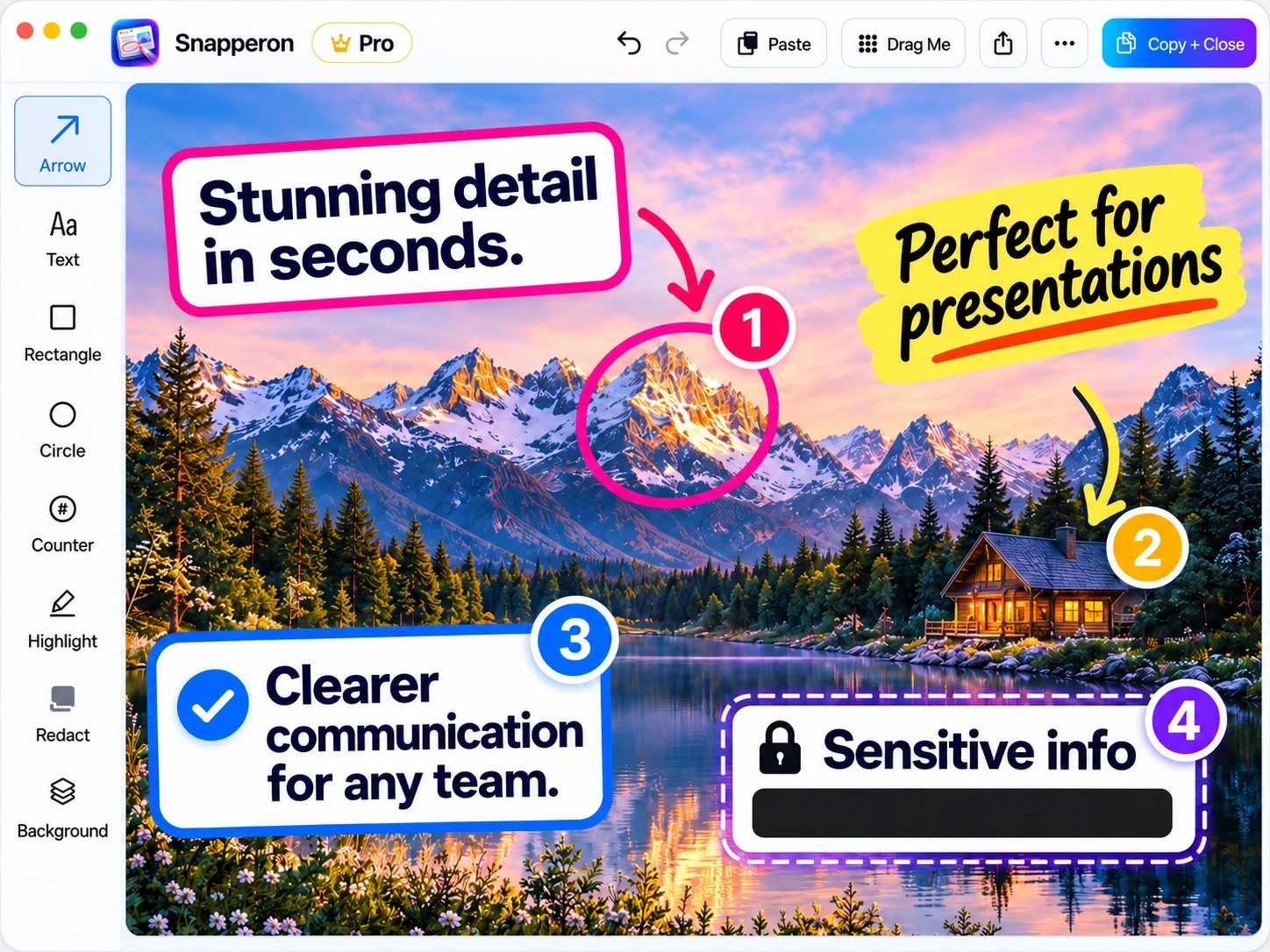
macOS 14+Apple Silicon
FREE • No Credit Card needed
Snapperon is a Mac app.
Email sent
We sent your Snapperon download link to:
Can’t find it? Check your spam or junk folder.
Just your download link. No mailing-list signup.
While you’re here
See how Snapperon worksmacOS 14+ · Apple Silicon
Your screenshots stay on your Mac.
Hide sensitive info in one click.
A clean, distraction-free experience.
Safe, secure, and ready for work.
TURN SCREENSHOTS INTO
Three ways to communicate visually, in one simple app.
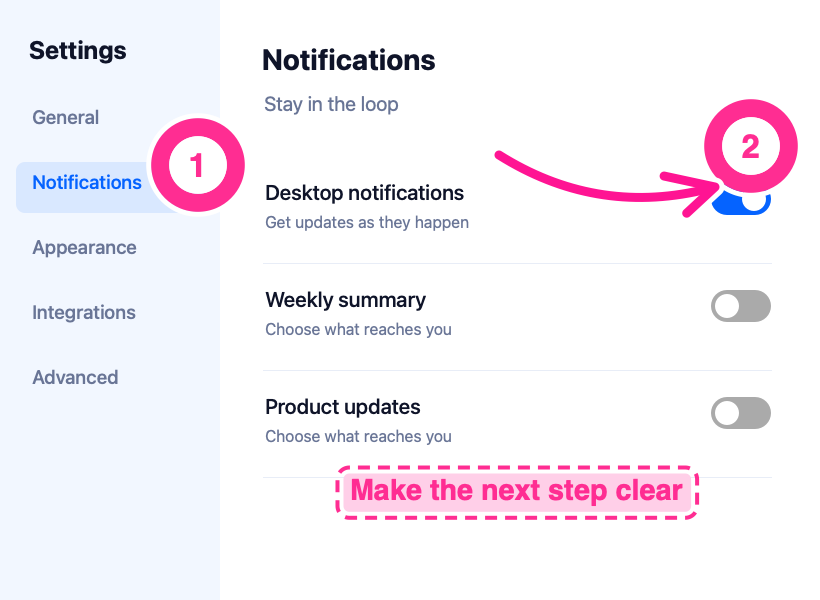
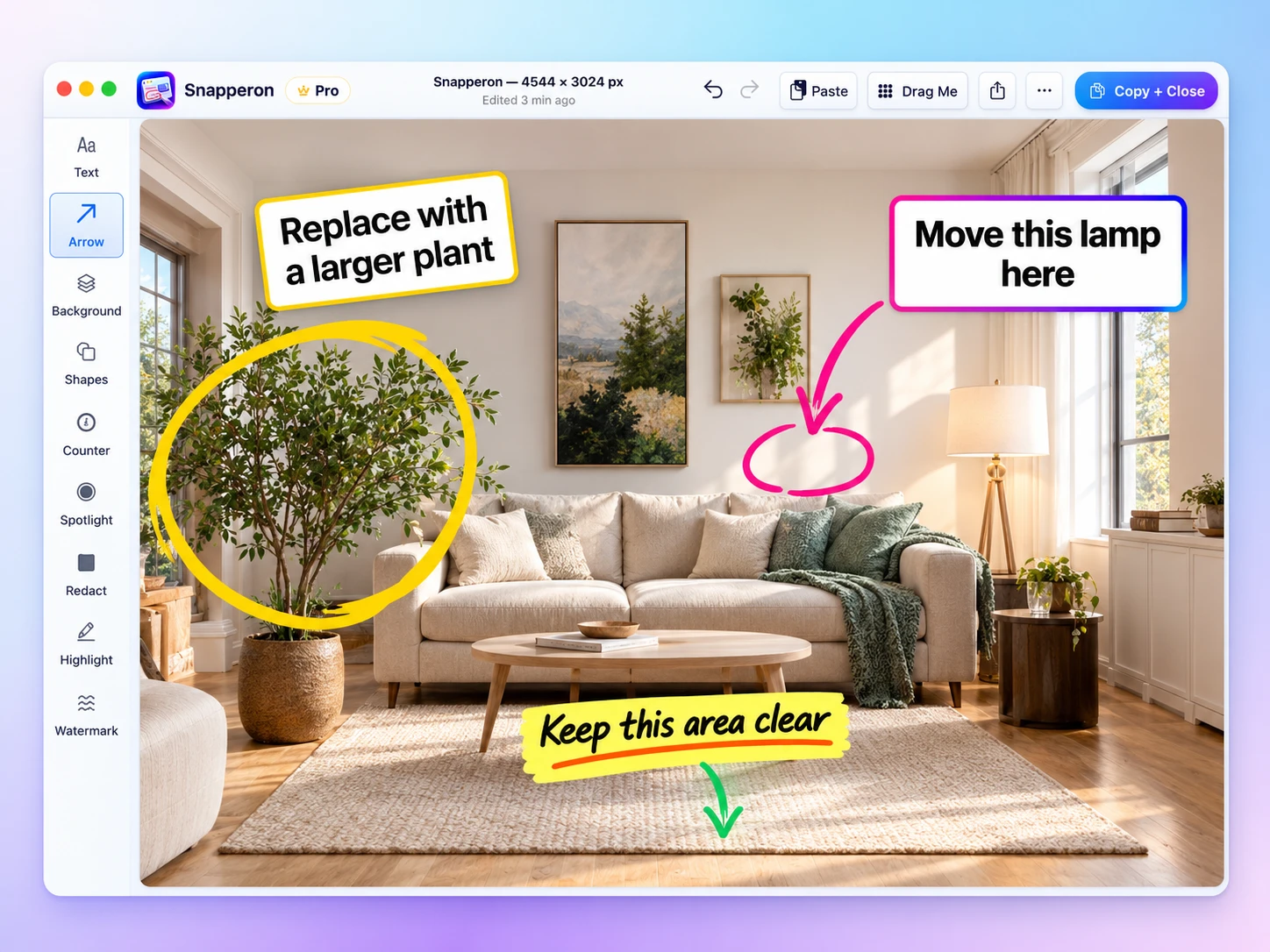
Make your point instantly.
Pro style shownArrows, numbered steps, spotlights, shapes, and text turn complex information into clear visuals.
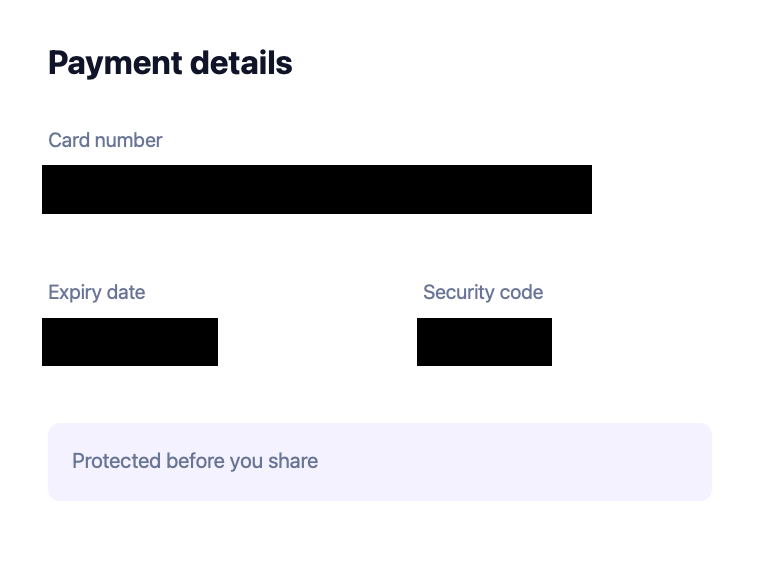
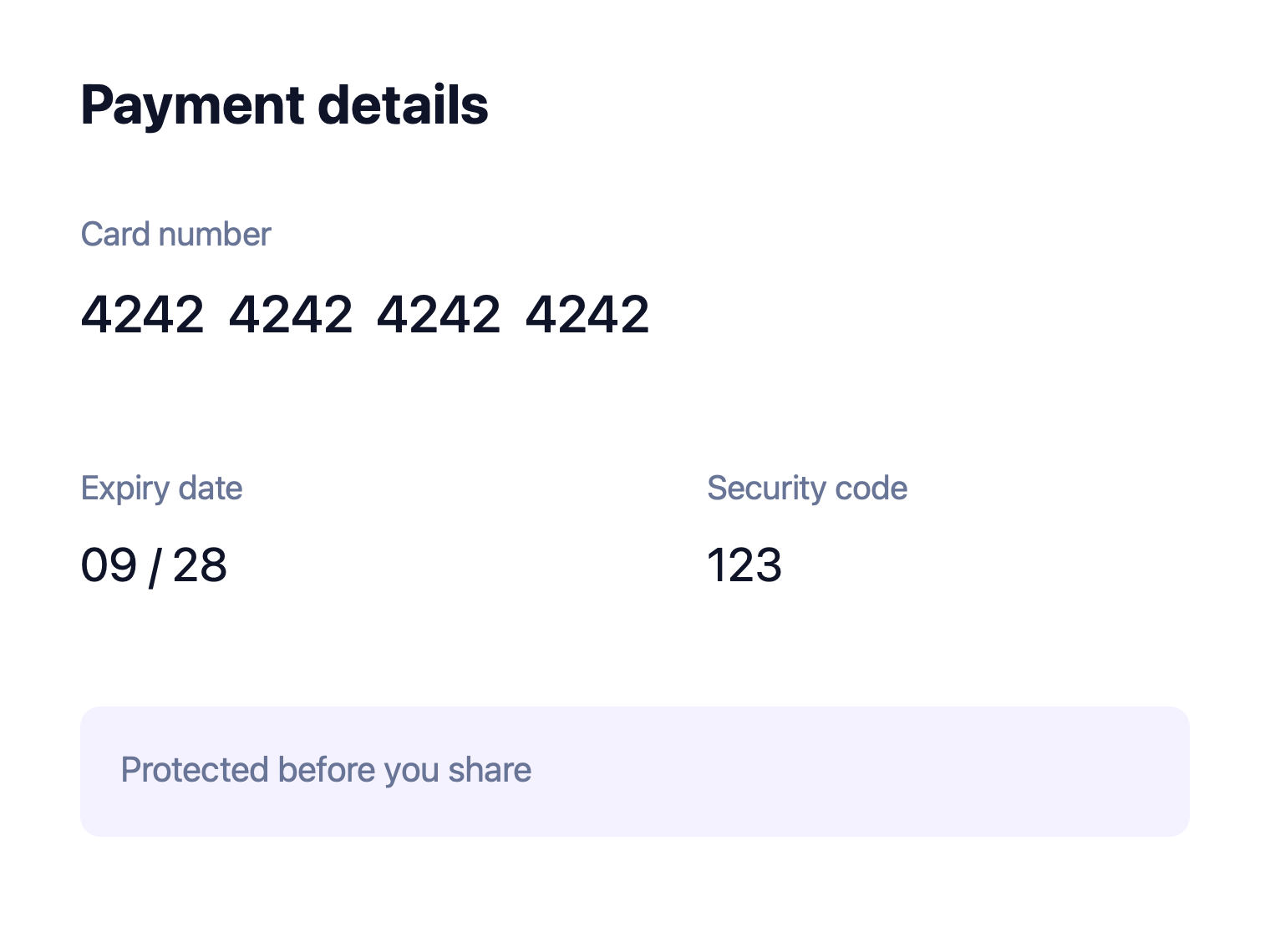
Keep sensitive information safe.
Redact personal or confidential data with confidence. Solid redaction permanently covers hidden details in images you save or share.
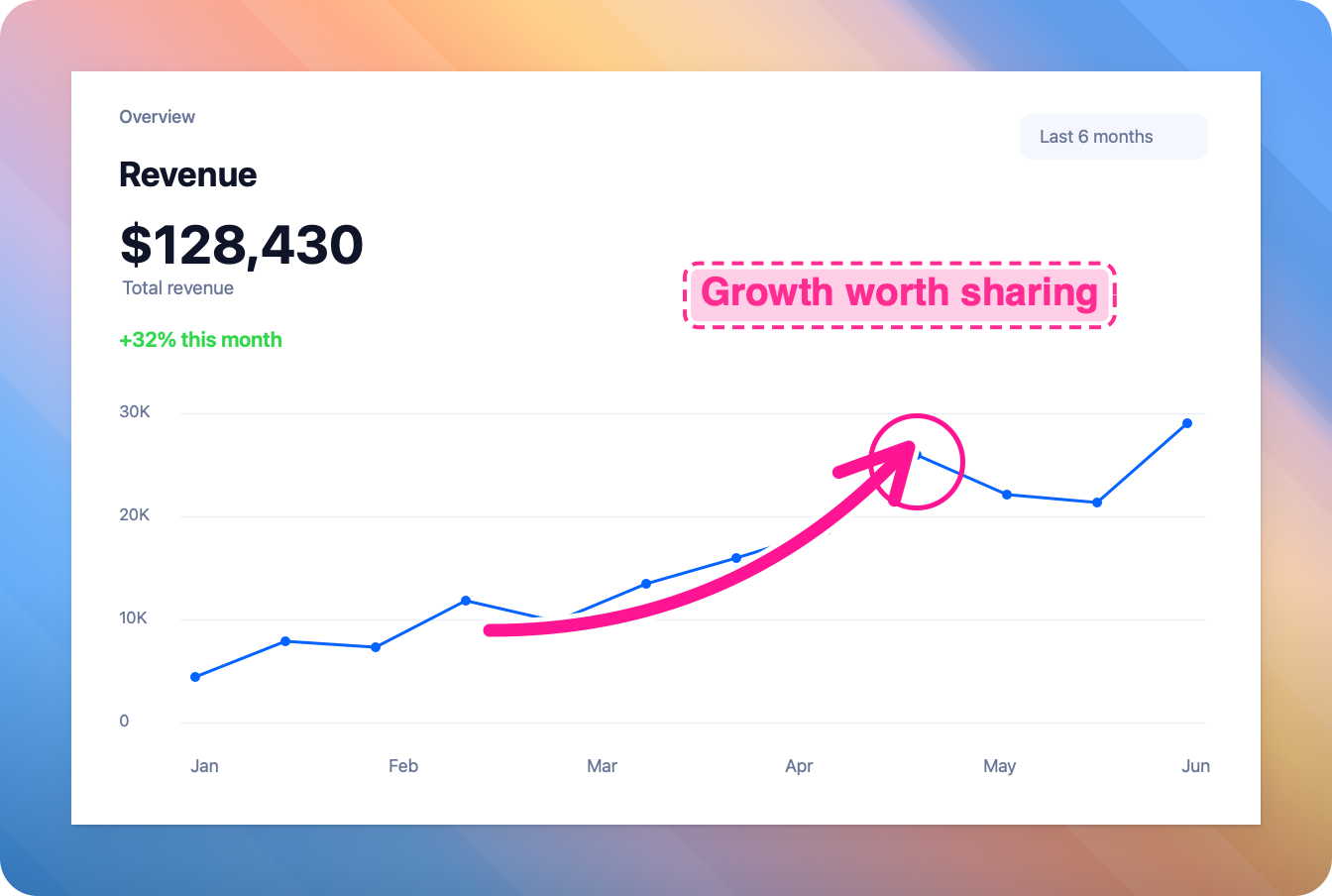
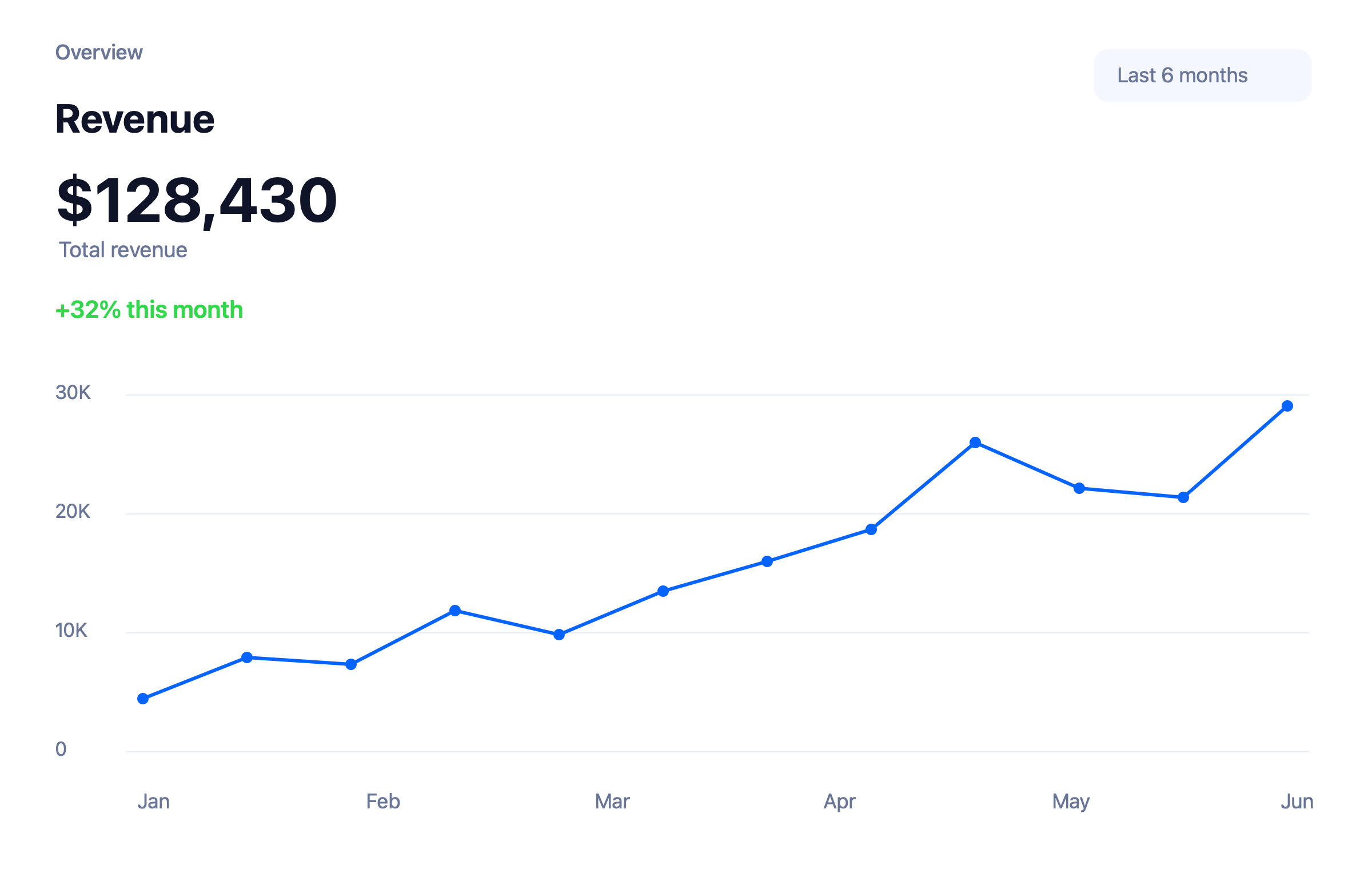
Turn screenshots into polished visuals.
Pro style shownBeautiful backdrops, borders, typography, and watermarks help you create proposal-ready, email-ready, and presentation-ready images.
FROM SCREENSHOT TO SHAREABLE VISUAL
Capture or open an image, add your annotations, and share. No design skills required.
Take a screenshot or open an image or PDF.
Add arrows, text, shapes, counters, and more.
Apply backdrops, borders, or a watermark.
Copy + Close, then paste. Or save as PNG or JPG.
Snapperon is a Mac app.
Email sent
We sent your Snapperon download link to:
Can’t find it? Check your spam or junk folder.
Just your download link. No mailing-list signup.
Free · No account needed · macOS 14+ · Apple Silicon
 Snapperon
ANNOTATION TOOLS
From banner styles to redaction and watermarks, everything you need to explain, protect, and present.
Turn plain notes into polished callouts, captions, and labels.
Add clear notes with beautiful, designer-made styles.
Use it when:You want your message to look designed, not dropped in.

Guide the eye with bold, curved, hand-drawn, or marker-style arrows.
Direct attention to important details.
Use it when:You need to show exactly where to look.

Add clean numbered steps for walkthroughs, tutorials, and feedback.
Explain steps and processes clearly.
Use it when:Your screenshot needs a clear sequence.

Emphasize text and key details with clean or hand-made highlight styles.
Emphasize important information at a glance.
Use it when:A word, value, or UI detail needs instant emphasis.

Permanently hide sensitive details before sharing or exporting.
Hide sensitive information permanently.
Use it when:You’re sending client-safe or privacy-safe screenshots.

Use circles and rectangles to frame exactly what matters.
Use lines, boxes, and more to illustrate your point.
Use it when:You need to isolate an area without adding extra text.

Protect screenshots with subtle or repeating branding and ownership marks.
Add a professional watermark to your images.
Use it when:Your visuals may be shared externally or reused.

Turn your screenshots into polished, branded images.
Make your screenshots stand out with beautiful backdrops.
Use it when:You want screenshots to look presentation-ready in seconds.

All core annotation tools are included in Free. Pro adds unlimited screenshots, more styles, and no watermark.
No uploads. No account. Capture and edit on your Mac, then choose what to share.
Snapperon is a Mac app.
Email sent
We sent your Snapperon download link to:
Can’t find it? Check your spam or junk folder.
Just your download link. No mailing-list signup.
Free · No account needed · macOS 14+ · Apple Silicon
BUILT FOR THE WAY YOU WORK
Create polished launch content and product updates in minutes.
Communicate design changes and UI feedback clearly.
Deliver professional client reports while protecting sensitive data.
Create step-by-step documentation and tutorials.
Publish annotated charts, tutorials, and branded content.
Give visual feedback on photos, renders, and floor plans.
LOVED BY INDIVIDUALS AND TEAMS
“I create product launch visuals in minutes. They look like they were made in Figma.”
“Our design feedback is finally crystal clear. Developers get it on the first try.”
“The redaction feature gives me peace of mind when sharing client screenshots.”
FREE TO START. ROOM TO GROW.
Download Snapperon free and use all the core tools. Upgrade inside the app when you want unlimited screenshots, more styles, and no watermark.
| Free$0Everything you need to start. No account. | ProFrom $19.99 a yearUnlimited and polished. | |
|---|---|---|
| All core annotation tools | Included | Included |
| Screenshots per day | Up to 10 | Unlimited |
| Watermark on your images | Snapperon watermark | Your own, or none |
| Styles | Core styles | Full style library |
| Backgrounds and borders | Basic choices | More to choose from |
| Hiding sensitive info (redaction) | Solid block | Solid, Labeled, or Pattern |
On Free, you can take up to 10 screenshots a day. The count starts over each day. Images you save or share carry a Snapperon watermark. Pro removes both limits.
COMMON QUESTIONS
Everything to know before you download.
Yes. Download it, use all the core annotation tools, and keep using it as long as you like. Free includes up to 10 screenshots a day. Images you save or share carry a Snapperon watermark.
Pro adds more styles, unlimited screenshots, and watermark control. See Free vs Pro
No. Download Snapperon, open it, and start. There's nothing to sign up for.
Snapperon needs a Mac with an Apple chip (M1 or newer) running macOS 14 (Sonoma) or newer.
To check, click the Apple logo in the top-left corner of your screen and choose About This Mac. Next to “Chip” you should see Apple M1, M2, M3, or similar. Your macOS version should be 14 or higher.
If it says “Intel” instead, Snapperon won’t run on that Mac. Snapperon is Mac-only.
Download the file, open it, and drag Snapperon into your Applications folder. Then open Snapperon from there.
The first time, your Mac may ask you to confirm. Click Open. Step-by-step on the download page
Both are the same Snapperon app. You can download it directly from this page today, and a Mac App Store version is coming soon.
Pro is bought separately in each version, so a Pro purchase in one doesn't carry over to the other. Free includes all the core annotation tools, so you can start now and decide on Pro later.
Yes. Apple has scanned this download for malicious software and confirmed it comes from a registered developer, which is what “signed and notarized” means.
The first time you open it, your Mac may ask you to confirm. Click Open.
No. Snapperon works on your Mac and doesn't upload your screenshots. They only go where you send them, like pasting into an email or saving a file. Read our privacy promise
To take screenshots, your Mac needs your permission. When Snapperon asks, choose Allow.
If you missed it, open System Settings, then Privacy & Security, then Screen Recording (called “Screen & System Audio Recording” on newer versions of macOS). Turn on Snapperon and reopen the app.
Yes. Solid redaction permanently covers hidden details in the PNG or JPG image you save or share, so nobody can remove the box from that image to see what was underneath.
For passwords, account numbers, and other very sensitive details, use Solid. This does not change your original image or PDF.
Two things: up to 10 screenshots a day, and a Snapperon watermark on the images you save or share. Your count starts over each day. Everything else core, including all the annotation tools, is included.
A screenshot counts when Snapperon finishes taking a new screenshot. At the limit, you see an upgrade prompt, but you can still review and copy your last screenshot. Your count resets at midnight on your Mac’s clock.
Unlimited screenshots, the full library of styles, more backgrounds and borders, a custom watermark or none at all, and more redaction options: Solid, Labeled, and Pattern. Compare Free and Pro
Monthly ($2) is the most flexible. Annual ($19.99) works out to about $1.67 a month and saves about 17%.
Lifetime ($38.99) is a single payment for Pro in this app, about the cost of two years of Annual. If you'll use Snapperon regularly, Annual or Lifetime costs less over time.
Prices are in USD.
Upgrade from inside Snapperon.
Direct download: Choose a plan and pay through PayPal. To cancel, open Pro settings in Snapperon, choose Manage License, then Cancel Subscription Renewal to stop future automatic payments.
Mac App Store version: Buy inside the app when it is available. To cancel, use your Apple subscription settings.
Monthly and annual plans charge you again automatically until you cancel. Lifetime is a one-time payment.
If you cancel a subscription, you keep Pro until the end of the period you paid for. Snapperon then switches back to Free.
Your Mac can capture and mark up screenshots in basic ways.
Snapperon brings arrows, numbered steps, spotlights, banners, redaction, and polished backgrounds together to help you get screenshots ready to share. Choose Copy + Close, then paste where you need it.
Compare Snapperon with CleanShot X, Xnapper and Deskeen, or browse all comparisons.
Yes. You can open a PDF and mark up its pages.
Copy your finished image and paste it into an email, document, or chat. You can also save it as PNG or JPG. Saving as a PDF is not available.
Still have a question? Email us at support@snapperon.com.
Find Snapperon in the Mac app community.
Download Snapperon free. No account, no uploads, no design skills.
Snapperon is a Mac app.
Email sent
We sent your Snapperon download link to:
Can’t find it? Check your spam or junk folder.
Just your download link. No mailing-list signup.
Free · No account needed · macOS 14+ · Apple Silicon