FOR MAC · APPLE SILICON · MACOS 14+

Capture. Mark up.
Copy + Close.

Turn a quick capture into a clear explanation. Add a frame, point to a detail, and make your note easy to read. Copy + Close puts the finished image on your clipboard and gets out of your way.

Free to try. Upgrade to Pro for premium features.

Coming to the Mac App Store

Your screenshots stay on your Mac. Snapperon never uploads or sends them to us.

THE SNAPPERON PRO EDITOR
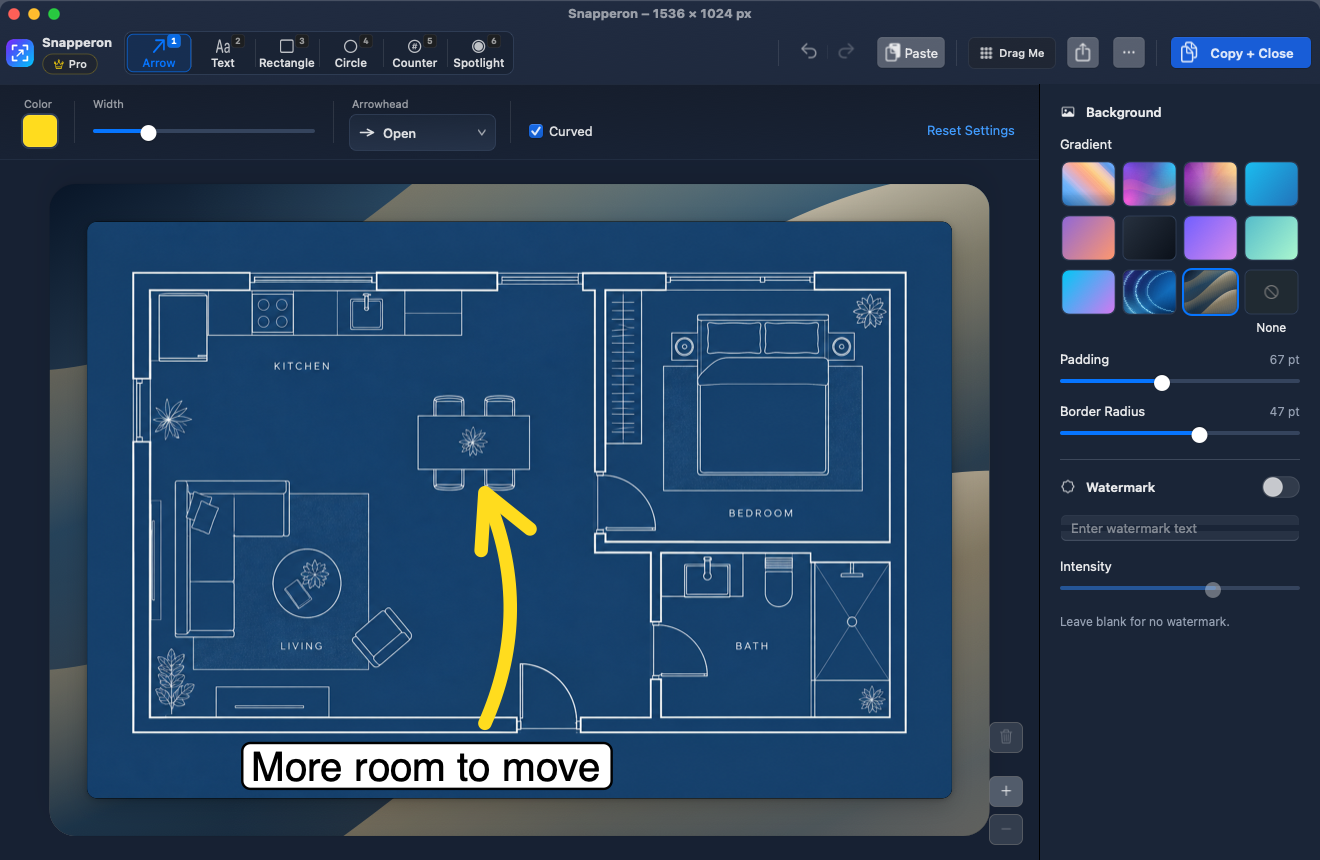
Snapperon Pro native editor showing a blueprint floor plan, thick yellow curved open arrow, large White text banner, and Copy + Close button.
A curved open arrow, a large White text banner, and a Dune gradient frame. All in the same editor.
1 click

Copy it. Close it.

Click Copy + Close or press ⌘C. Your image is ready to paste, and the editor closes.

0 clutter

Keep your desktop clear.

Copy your screenshot without saving a file to your desktop. No filename or folder to choose.

Your Mac

Your screenshots stay private.

Capture and edit on your own computer. No account needed. Nothing is sent to Snapperon.

PRIVATE ON YOUR MAC

Your screenshots stay on your Mac.

Client work, private messages, and unfinished ideas can stay confidential. Snapperon captures and edits on your computer. It never uploads or sends your screenshots to us.

No account to create. No advertising or analytics trackers in the app. You decide what to copy, save, or share.

Read the Privacy Policy

BEFORE & AFTER

Give your screenshot a finished look.

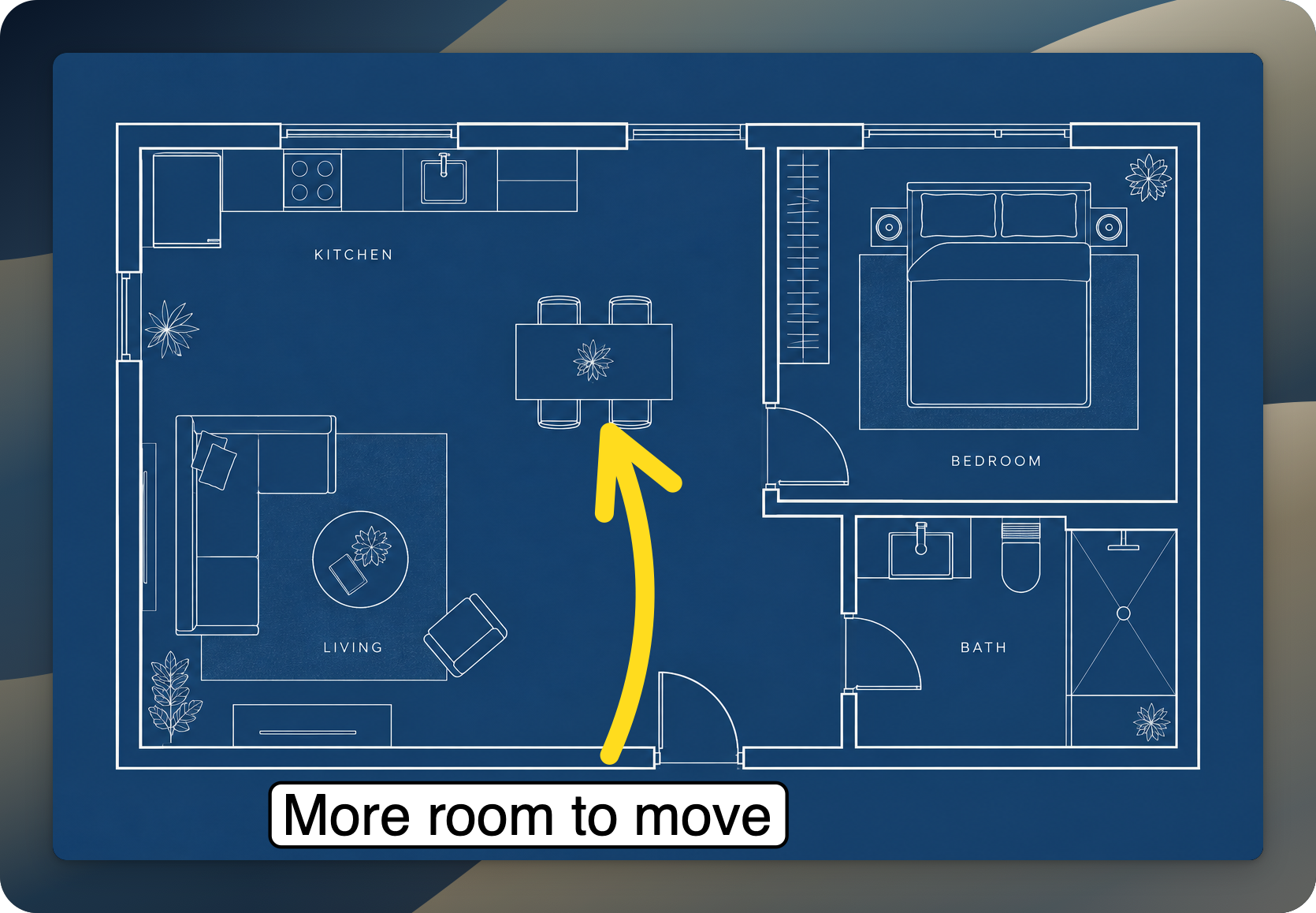
The same floor plan, with a frame and a note that says what needs changing.

BEFORE

Just the capture.

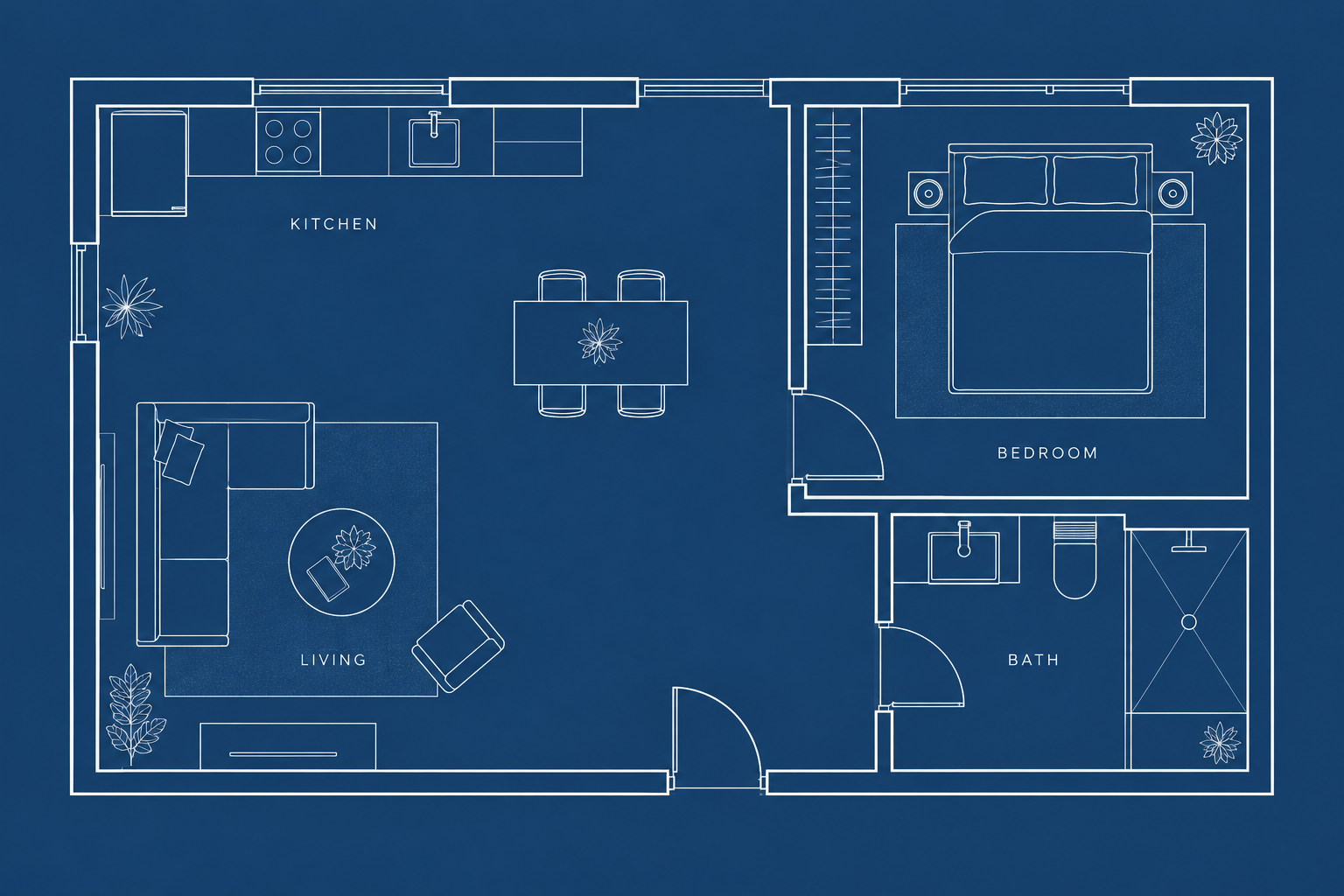
Original blue floor plan, with no added arrow, text banner, or gradient frame.
The unchanged sample image.
AFTER · SNAPPERON PRO

Your point, clearly made.

The same floor plan exported by Snapperon with a Dune gradient frame, thick yellow curved open arrow, and large White More room to move text banner.
An actual Snapperon export: frame, curved open arrow, and White text banner.

The original and finished image, side by side.

Frame the image. Add space and rounded corners for a document or presentation.

Make the note readable. Put your words on a solid text banner.

Send it and carry on. Copy + Close, then paste it into your message.

See this in the editor

COPY + CLOSE

Send the screenshot.
Get back to your work.

You wanted to show someone a detail. You shouldn’t have to name a file first.

  1. 01

    Capture

    Choose an area or your whole screen.

  2. 02

    Mark up

    Add an arrow, a note, or a frame.

  3. 03

    Copy + Close

    Click the button or press ⌘C. Your image goes to the clipboard, and the editor closes.

  4. 04

    Paste

    Press ⌘V in any email, chat, or document that accepts images.

Need a file instead? Save, Drag Me, and your Mac’s Share menu are there when you need them.

COPY HERE. PASTE THERE.

Right into the apps you already use.

Copy + Close, then ⌘V in a message, document, or canvas that accepts images.

SIX MARKUP TOOLS

Show what needs changing.

Arrows, text, rectangles, circles, counters, and Spotlight.
Switch tools with the number keys 1 through 6.

12 ARROWS & TEXT BANNERS

Notes you can actually read.

Point to a detail with an arrow. Put your note on a solid text banner so it stands out over the image.

  • Choose White, Pink, or Blue text banners.
  • Number a set of steps with Counter.
  • Pro adds curved arrows, custom fonts, colors, and more styling control.

All six markup tools and text banners are included in Free.
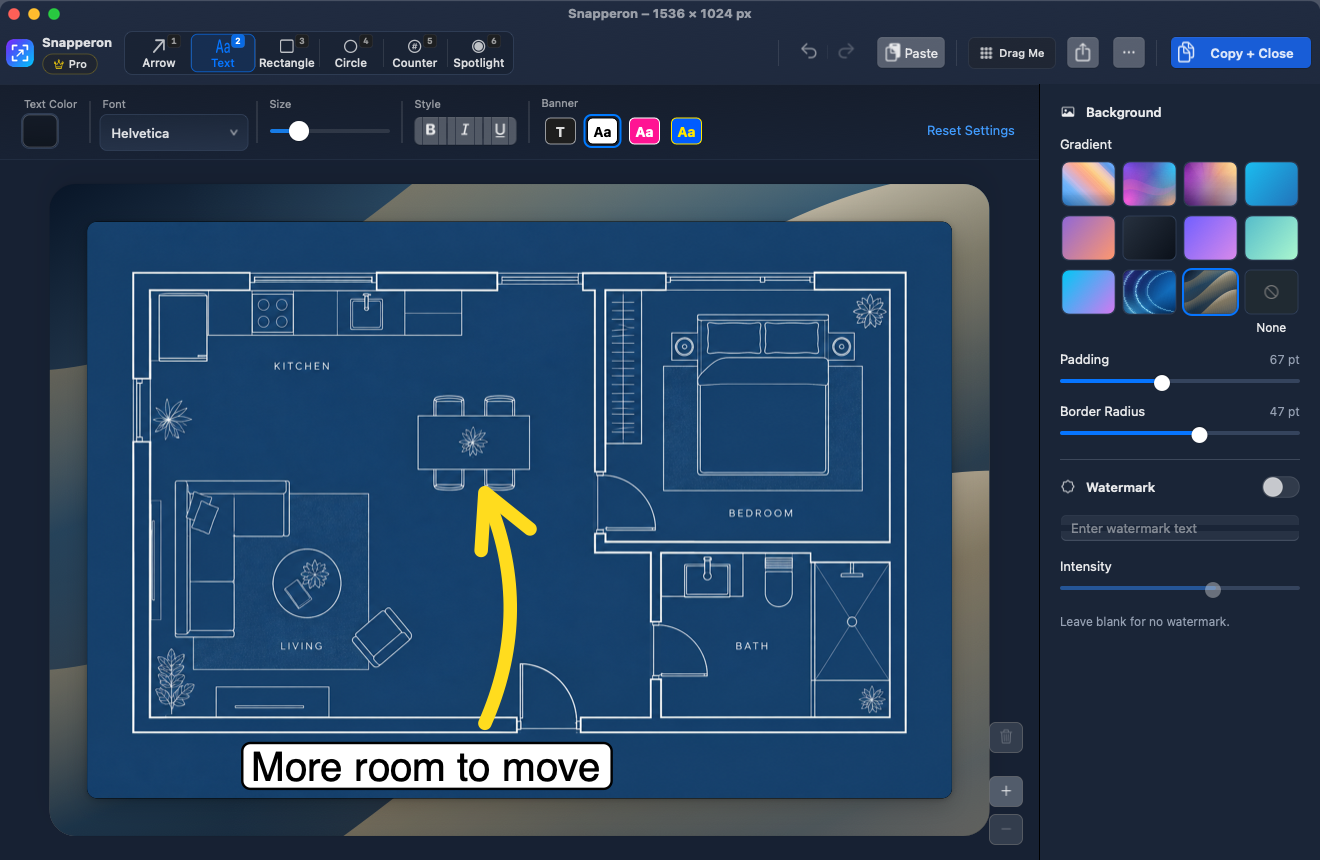
The actual Snapperon Pro editor with a thick yellow curved open arrow and large White text banner reading More room to move; text controls are visible.
A bright yellow curved open arrow and a large White text banner, with the actual text controls visible.

6 SPOTLIGHT

Highlight the part that matters.

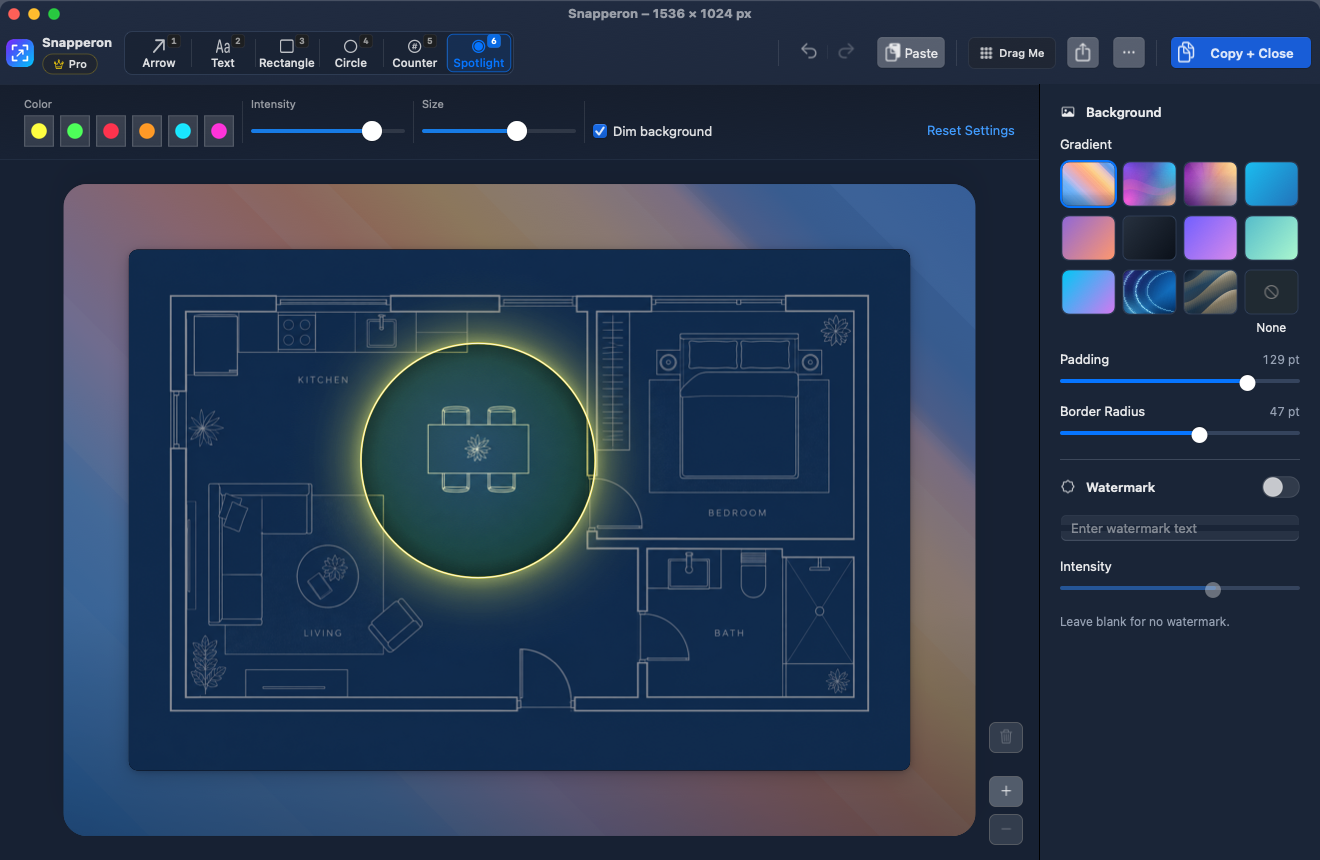
Put a circle of light over the detail you’re discussing. Dim the rest so people know exactly where to look.

  • Adjust the light’s size and intensity.
  • Turn background dimming on or off.
  • Yellow in Free. Five more colors in Pro.

Yellow Spotlight with background dimming is included in Free.

The actual Snapperon Pro editor with strong yellow Spotlight over the blueprint dining table, dimmed background, intensity controls, and Dim background selected.
Strong yellow Spotlight with background dimming. Size and intensity controls are visible in the editor.

GRADIENT FRAMES

Add a frame before you share.

Give your screenshot a finished look for a presentation, document, or email.

  • Choose from 11 gradient backgrounds.
  • Adjust the space around your image and round the corners.
  • Copy the framed image straight into your next message.

All 11 gradients and framing controls are included in Free.

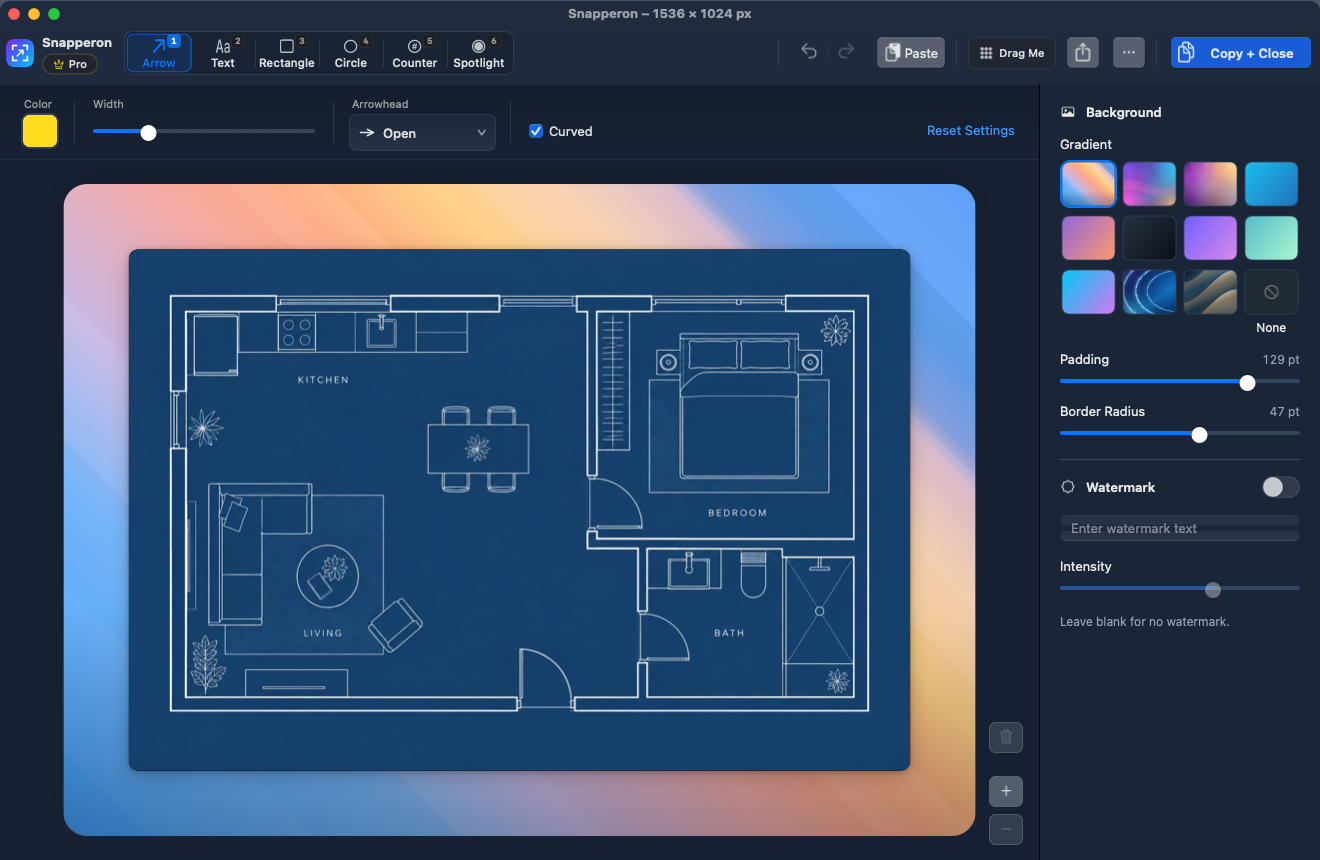
The actual Snapperon Pro editor with a colorful gradient frame around the blueprint, generous padding, rounded corners, and framing controls.
The Snapperon gradient, with padding and corner-radius controls in the same editor.

FOR THE WORK YOU SHARE

Less explaining. More showing.

Make the next bug report, client update, or how-to easier to follow.

PRODUCT & PROJECT TEAMS

Show exactly what needs changing.

Point to a bug, label the detail, and paste the screenshot into your task. Give the team a clear place to start.

FOUNDERS & DESIGNERS

Put your work in a better frame.

Add a background and rounded corners to a product preview. Paste it into a pitch deck or client proposal.

SUPPORT & OPERATIONS

Make the next step easy to see.

Number the steps with Counter, add a short note, and highlight the right button. Send an answer people can follow.

FREE & PRO

Free to try.
More control with Pro.

Start with the essentials. Upgrade for unlimited captures and more styling options.

START HERE

Snapperon Free

The tools to capture, explain, and share.

  • All six markup tools
  • Copy + Close and ⌘C
  • White, Pink, and Blue text banners
  • All 11 gradients, padding, and rounded corners
  • Yellow Spotlight with background dimming
  • 10 successful captures per local day, from 9 am to midnight
  • A tiled Snapperon watermark and Light editor appearance

UPGRADE WHEN YOU NEED MORE

Snapperon Pro

Everything in Free, plus:

  • Unlimited captures, at any time
  • Remove the Snapperon watermark or add your own text
  • Curved arrows and custom arrow styling
  • Five additional Spotlight colors
  • Custom fonts, colors, and text styling
  • Light, Dark, or System editor appearance

Choose your upgrade in the Mac App Store.

QUESTIONS & ANSWERS

Before you get started.

Have another question?
Snapperon support

Why use Snapperon instead of the free Mac screenshot shortcut (⌘⇧4)?

Your Mac’s built-in screenshot tools are useful for quick captures, and they can copy directly to the clipboard. Snapperon brings capture, markup, and framing into one editor.

Add an arrow, a readable text banner, or a gradient frame, then click Copy + Close or press ⌘C. Your finished image is ready to paste, the editor closes, and no screenshot file is saved to your desktop. Pro adds curved arrows and more styling choices.

How is this different from tools that generate shareable web links?

A web link is useful when you want to host an image online. For a quick visual note, you may want the picture right in your message.

Snapperon copies the finished image, not a web link. Press ⌘V in a chat, email, or document that accepts images. The recipient can see the picture there, without opening a screenshot-hosting page. Snapperon doesn’t upload or host your captures.

Can I use it for confidential client work and internal dashboards?

Snapperon captures and edits on your Mac. It never uploads or sends your screenshots to us. There’s no account to create and no advertising or analytics tracking in the app.

You choose what to copy, save, or share. Your Mac may sync clipboard contents according to your settings, and the apps you paste into can store or send their own copies. See the Privacy Policy for details.

How can I make screenshots clearer for decks and client updates?

Give the image a frame, make your note easy to read, and point to the detail you want someone to notice.

  • Gradient frames: choose from 11 backgrounds, adjust the space around your image, and round the corners.
  • Text banners: use a solid White, Pink, or Blue background so your words stand out over a busy image.
  • Curved open arrows in Pro: bend an arrow around nearby details.
  • Spotlight: light up one area and dim the rest.
How does Copy + Close prevent desktop clutter?

If you only need to send a picture, you don’t need another file to name and tidy up later. Copy + Close puts your finished screenshot on the clipboard and closes the editor. It doesn’t save a screenshot file to disk.

Need a file instead? Use Save, Drag Me, or your Mac’s Share menu. Drag and Share can create temporary files, which become eligible for cleanup on a later launch after 24 hours. Deletion within 24 hours is not guaranteed. See the Privacy Policy.

Can I paste directly into chats, emails, and documents?

Yes, wherever the app accepts pasted images. Snapperon copies your finished screenshot as a PNG image. After Copy + Close, switch to your message or document and press ⌘V.

What can I do for free, and when should I upgrade to Pro?

Free includes the everyday workflow: all six markup tools, Copy + Close, White, Pink, and Blue text banners, all 11 gradients, framing controls, and yellow Spotlight with background dimming. You get 10 successful captures per local day, from 9 am to midnight, with a tiled Snapperon watermark and a light editor appearance.

Upgrade to Pro when you want more captures or more control. Capture at any time without daily limits, remove the Snapperon watermark or add your own text, use curved arrows, choose five additional Spotlight colors, and customize fonts and colors. Pro also offers Light, Dark, or System editor appearance.

Which Macs can run Snapperon?

Apple Silicon Macs running macOS 14 Sonoma or later. Snapperon is coming to the Mac App Store.

Make your next screenshot clearer.

Free to try. Upgrade to Pro for premium features.

See the editor

Coming to the Mac App Store · macOS 14+ · Apple Silicon