
NATIVE MACOS MCP SERVER · CLAUDE DESKTOP & CODEX VERIFIED
New · Direct AI control via local MCP — verified in Claude Desktop & Codex →Let Claude Desktop and Codex capture, annotate, preview, and export—inside a real Mac editor.
Snapperon exposes every reviewed local app control through 18 structured Model Context Protocol (MCP) commands. Automate screenshots, PDF page markup, numbered walkthroughs, and permanent redaction locally on Apple silicon—while keeping every annotation editable by hand.
Send the download link to your Mac.
Free · No account needed · macOS 14+ · Apple Silicon
- 18
- MCP commands
- All 9
- Annotation tools · 7 framing controls
- 57% smaller
- Editing schema · on-demand discovery
- 24,146
- Verified option cases
What Snapperon MCP does—and why AI workflows need a native editor
Snapperon is a native Swift and AppKit screenshot editor for Mac. Its local Model Context Protocol (MCP) server lets Claude Desktop and Codex Desktop control the installed app through 18 commands. All 9 annotation tools, every reviewed style option and the presentation controls are available, with rendered previews and one-step Undo for each committed edit batch.
The original screenshot stays available without image-generation changes. Annotations stay editable in the native editor so a person can move, resize or restyle them afterward. PNG export is lossless; JPEG is a compressed output option. Snapperon requires macOS 14 (Sonoma) or later on Apple silicon (M1 or newer). This is local desktop app control, not a hosted cloud API.
Tested in real desktop agent workflows
Claude Desktop: discover tools when needed
Tested with on-demand tool discovery, all 9 annotation tools, grounded semantic callouts without corrective coaching, native local file import and exact Undo/Redo. Clear tool descriptions and a 57% smaller editing schema let Claude find the editing command dynamically, without asking it to “load all tools.”
Codex Desktop: inspect, coordinate and commit
A configured Codex Desktop connection completed visual inspection and coordinated markup: read an embedded six-digit image code, prepare a matched rectangle and auto-fitted text label, inspect the preview, commit as one Undo step and present the finished visual. Independent native readback verified both editable annotations and exact Undo/Redo.
Reviewed verification corpus: 24,146 option cases · 275 core tests · 38 native suites, with Debug and Release builds. These counts describe the reviewed cases, not every possible numeric combination or AI request. Client results cover the workflows described here.
Connect through Snapperon’s native settings
- Open Snapperon Settings → Assistant Connections and choose Enable AI assistants. Read the native access explanation.
- Choose Copy Codex Setup or Copy Claude Desktop Setup. Snapperon generates the helper path for this exact installed copy.
- Merge the copied entry into your client’s configuration, preserving other servers. Codex uses
config.toml; Claude Desktop uses themcpServersobject inclaude_desktop_config.json. Reconnect local MCP servers in the client. - Approve macOS Screen Recording when capturing. Use Choose Export Folder… for file saves. For connection help, choose Troubleshooting → Save Connection Diagnostics….
No additional Node or Python runtime is needed on your Mac. The signed helper stays inside its associated app. After moving the app, use the setup buttons again if the client still points at the previous location.
Existing restricted connections keep their permissions. Choose Enable Full Control to adopt full app access explicitly. Turning Enable AI assistants off revokes assistant access.
Work from ordinary requests
“Number these three peaks.”
Inspect the source image, identify the three peaks, stage native counters with edit_document or mark_regions, inspect the rendered preview, then commit_edit once.
“Highlight this heading.”
Inspect the heading, stage a native highlight with its color and opacity, check the preview and commit. Text-snapping or explicit regions can guide placement.
“Remove the middle marker.”
Inspect the current annotations, select the intended annotation ID and stage its removal with edit_document. Preview and commit while preserving the other markers.
“Inspect this dialog, box the verification code, and copy it to the clipboard.”
Capture the authorized dialog or open its local image. Inspect the code, stage a matching rectangle and text label, preview, commit as one Undo action and export to the authorized clipboard.
From first draft to finished visual
Developer docs, changelogs & knowledge bases
Capture live windows, add numbered counters and labels, verify a rendered preview and export crisp PNGs for step-by-step documentation.
UI QA, PR screenshots & design review
Let a coding assistant inspect an authorized window and place grounded callouts. Review the result and fine-tune the native layers yourself.
Local PII redaction
Apply Solid redaction, or Labeled and Pattern treatments on Pro, to screenshots and PDF pages. Inspect the flattened output. An assistant that reads the original source may see sensitive pixels; choose its access accordingly.
Charts, research figures & floor plans
Number chart peaks, highlight a heading or mark up a PDF page with arrows and notes. Preserve the original source and keep each annotation adjustable.
Agent draft → human polish
Have an assistant prepare and preview the first pass. Adjust any layer in the Mac editor, then finish with Copy + Close, drag-and-drop or PNG/JPEG export.
Complete MCP tool and option reference: all reviewed local controls
All nine annotation tools and their reviewed native options are exposed through MCP. The reference below contains 109 top-level tool settings and 18 top-level composition fields. Nested object subfields (shadow.*, banner_colors.*, shadow_lighting.* and watermark_style.*) are expanded as additional table rows. The reviewed verification corpus covers 24,146 option cases; it is not every possible numeric combination.
Use get_capabilities for the installed app’s current defaults and per-value Free/Pro availability. These are settings inside edit_document, not additional MCP commands.
Creation, coordinates & selective editing
op- Operation: add, update, remove, remove_target, duplicate, front, back, reset, move, remove_group, composition or reset_all. Each operation accepts its own fields.
tool- For add: arrow, text, rectangle, circle, counter, spotlight, redact, highlight or freehand.
start / end- Two-dimensional positions, normalized to the source by default. Use coordinate_space: composition_pixels only when the inspected composition supplies that coordinate space.
points- Freehand path with 2–4,096 [x,y] points. Use points without start/end, or the supported start/end gesture.
regions / whole_line- Highlight regions: 1–1,024 normalized [x,y,width,height] rectangles, without start/end. whole_line selects the anchored line.
text / title / text_box_height- Text content and optional title. An explicit text_box_height is 1–10,000 native points or null. New labels can grow vertically to fit wrapped text.
number- Counter value: integer 1–9,999.
id / group_id / delta- Target a returned annotation ID, remove a group by its ID, or move a selected annotation by [dx,dy]. front/back change its order.
settings- Use the exact tool-specific setting IDs below. A composition operation uses the framing settings instead.
Stage changes against the inspected document version, inspect the rendered preview, then commit. Preparation alone does not apply the edit.
Arrows
19 top-level settings
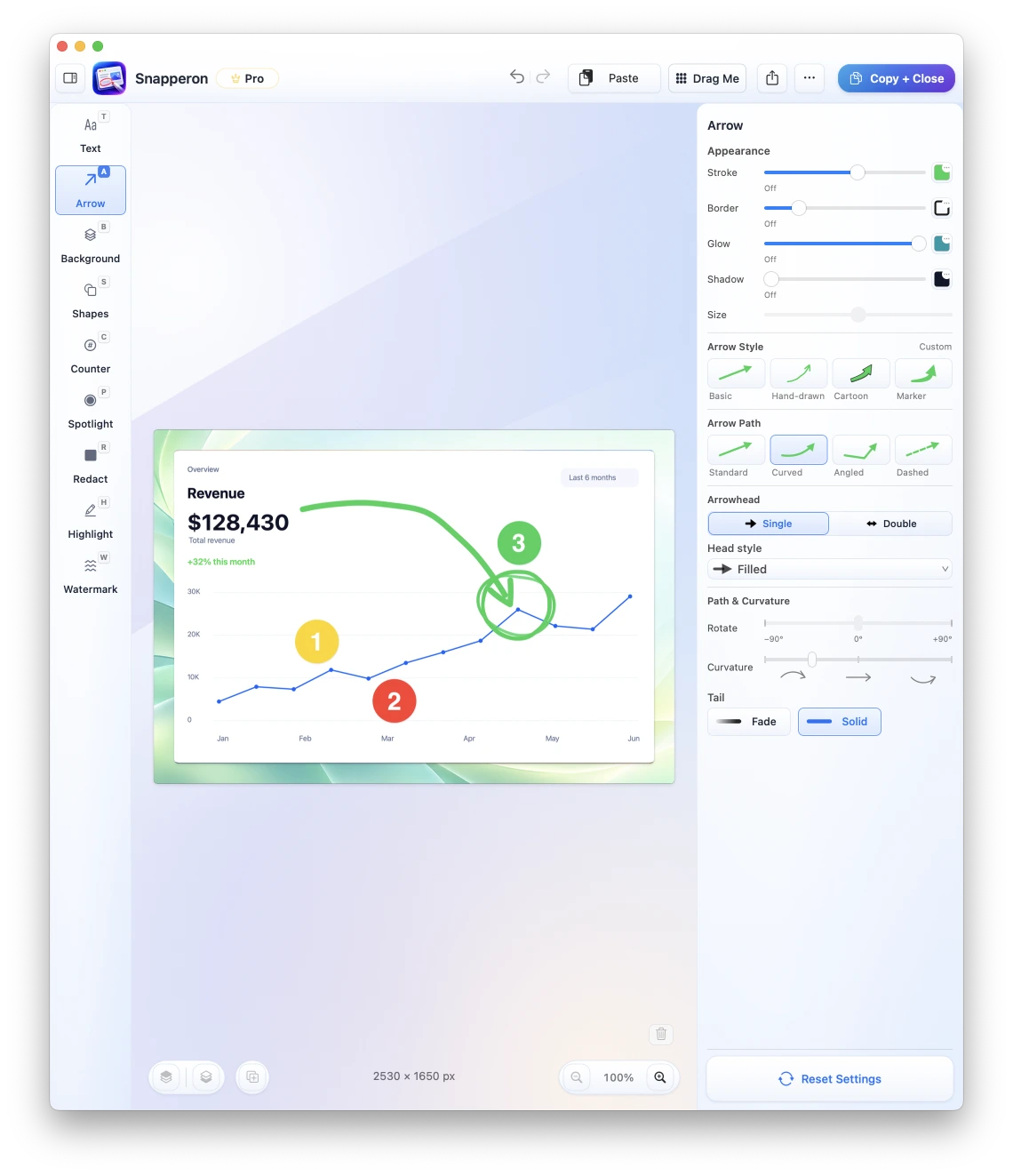
Direct the eye with straight or curved paths, hand-drawn, cartoon and marker presets, single or double arrowheads, borders, shadows and glow.
| Parameter | Type, values & limits |
|---|---|
arrow_border | color · supports tool defaults |
arrow_border_width | number · 0–48 · supports tool defaults |
arrow_curvature | number · 0–0.6 · supports tool defaults |
arrow_glow | bool · supports tool defaults |
arrow_glow_amount | number · 0–1 · supports tool defaults |
arrow_glow_color | optional_color · null supported · supports tool defaults |
arrow_length | number · 1–1000000 · per-annotation setting |
arrow_path | ArrowPathStyle · standard, curved, angled, dashed · supports tool defaults |
arrow_preset | ArrowPreset · basic, hand_drawn, cartoon, marker · supports tool defaults |
arrow_rotation | number · -90–90 · per-annotation setting |
arrow_shadow | bool · supports tool defaults |
arrow_straighten | number · 0–1 · supports tool defaults |
arrow_stroke | bool · supports tool defaults |
color | color · supports tool defaults |
fade_tail | bool · supports tool defaults |
flip_curve | bool · supports tool defaults |
head | ArrowHeadStyle · filled, open, double_ended, double_open, none · supports tool defaults |
shadow | shadow · null supported · supports tool defaults |
shadow.blur | number · 0–48 |
shadow.distance | number · 0–24 |
shadow.elevation | enum · none, subtle, floating, sticker, custom |
shadow.extent | number · 1–3 |
shadow.intensity | number · 0–15 |
shadow.opacity | number · 0–0.4 |
shadow.tint | color |
width | number · 3–72 · supports tool defaults |
Text & Banners
21 top-level settings
Place a plain label or a designed banner. Set typography, text/backdrop colors, alignment, rotation, icons, gradients and shadows. New labels preserve wrapping width and expand vertically to fit their content; inspect placement in the preview.
| Parameter | Type, values & limits |
|---|---|
banner | TextBannerStyle · none, solid, outline, filled, marker_note, lock_card, comic_burst, retro_letterpress, title_info, handwritten, gradient_border, gradient_fill, shadow, glow, pill, sticky, gradient_text, ribbon, caption, white, pink, blue, bracket, underline, corner_fold, tape, holographic, neon, glass · supports tool defaults |
banner_border_color | optional_color · null supported · supports tool defaults |
banner_colors | colors · supports tool defaults |
banner_colors.background | optional_color · null supported |
banner_colors.text | optional_color · null supported |
banner_gradient | TextBannerGradient · spectrum, aurora, sunset, ocean, blue_violet · supports tool defaults |
banner_icon | BannerIcon · null, info, sparkle, document, checkmark, lock, warning, error, question_mark, star, link, cursor, arrow_up, arrow_right, pin, eye, message, comment, mail, camera, image, calendar, clock, target, bell, heart, thumbs_up, thumbs_down, flag, gear, location, lightbulb, bookmark, tag, folder, download, upload, shield · supports tool defaults |
banner_icon_color | optional_color · null supported · supports tool defaults |
banner_icon_visible | bool · supports tool defaults |
banner_title_color | optional_color · null supported · supports tool defaults |
bold | bool · supports tool defaults |
color | color · supports tool defaults |
font | font · supports tool defaults |
handwriting_weight | optional_bool · null supported · supports tool defaults |
italic | bool · supports tool defaults |
shadow | shadow · null supported · supports tool defaults |
shadow.blur | number · 0–48 |
shadow.distance | number · 0–24 |
shadow.elevation | enum · none, subtle, floating, sticker, custom |
shadow.extent | number · 1–3 |
shadow.intensity | number · 0–15 |
shadow.opacity | number · 0–0.4 |
shadow.tint | color |
size | number · 1–1000 · supports tool defaults |
text_alignment | TextAlignment · left, center, right · supports tool defaults |
text_backdrop | optional_color · null supported · supports tool defaults |
text_backdrop_rounding | number · 0–1 · supports tool defaults |
text_rotation | number · -180–180 · supports tool defaults |
text_scale | number · 3–24 · supports tool defaults |
underline | bool · supports tool defaults |
Counters (Numbered Steps)
10 top-level settings
Place numbered badges for walkthroughs and bug reports. Control the number, scale, foreground, border, treatment, rotation and shadow.
| Parameter | Type, values & limits |
|---|---|
color | color · supports tool defaults |
counter_border | color · supports tool defaults |
counter_border_width | number · 0–48 · supports tool defaults |
counter_rotation | number · -180–180 · supports tool defaults |
counter_scale | number · 0.1–200 · supports tool defaults |
counter_shadow | number · 0–2 · supports tool defaults |
counter_treatment | CounterTreatment · filled_circle, outline_circle, filled_square, outline_square, pin · supports tool defaults |
foreground | color · supports tool defaults |
shadow | shadow · null supported · supports tool defaults |
shadow.blur | number · 0–48 |
shadow.distance | number · 0–24 |
shadow.elevation | enum · none, subtle, floating, sticker, custom |
shadow.extent | number · 1–3 |
shadow.intensity | number · 0–15 |
shadow.opacity | number · 0–0.4 |
shadow.tint | color |
size | number · 1–1000 · supports tool defaults |
Highlights
7 top-level settings
Emphasize a heading or detail with native highlight styles, color and intensity. Text snapping can follow a region or anchored whole line.
| Parameter | Type, values & limits |
|---|---|
color | color · per-annotation setting |
highlight_color | color · supports tool defaults |
highlight_intensity | number · 0–1 · supports tool defaults |
highlight_snap | bool · supports tool defaults |
highlight_style | HighlightStyle · clean, handmade · supports tool defaults |
rectangle_rounding | number · 0–1 · supports tool defaults |
shape_size | number · 1–1080 · per-annotation setting |
Redaction
10 top-level settings
Cover sensitive pixels in flattened PNG/JPEG output while leaving the original file untouched. Solid is available in Free; Labeled and Pattern require Pro. Original pixels remain in the editable source, so choose assistant access carefully.
| Parameter | Type, values & limits |
|---|---|
rectangle_rounding | number · 0–1 · supports tool defaults |
redaction_color | RedactionColor · black, white, charcoal, red, yellow · supports tool defaults |
redaction_custom_color | optional_color · null supported · supports tool defaults |
redaction_label_text | string · maximum 128 native characters · supports tool defaults |
redaction_padding | number · 0–32 · supports tool defaults |
redaction_pattern_size | number · 0–1 · supports tool defaults |
redaction_shows_label | bool · supports tool defaults |
redaction_text_size | number · 0.15–1.5 · supports tool defaults |
redaction_treatment | RedactionTreatment · solid, labeled, pattern · supports tool defaults |
shape_size | number · 1–1080 · supports tool defaults |
Rectangles
12 top-level settings
Frame panels and controls with a border or fill, rounded corners, native border styles, glow, opacity and shadows.
| Parameter | Type, values & limits |
|---|---|
color | color · supports tool defaults |
filled | bool · supports tool defaults |
rectangle_rounding | number · 0–1 · supports tool defaults |
shadow | shadow · null supported · supports tool defaults |
shadow.blur | number · 0–48 |
shadow.distance | number · 0–24 |
shadow.elevation | enum · none, subtle, floating, sticker, custom |
shadow.extent | number · 1–3 |
shadow.intensity | number · 0–15 |
shadow.opacity | number · 0–0.4 |
shadow.tint | color |
shape_border_style | ShapeBorderStyle · solid, dashed, dotted, hand_drawn · supports tool defaults |
shape_fill_color | color · supports tool defaults |
shape_glow | number · 0–1 · supports tool defaults |
shape_kind | ShapeKind · rectangle, circle · per-annotation setting |
shape_opacity | number · 0–1 · supports tool defaults |
shape_shadow | number · 0–1 · supports tool defaults |
shape_size | number · 1–1080 · supports tool defaults |
width | number · 0.5–96 · supports tool defaults |
Circles / Ellipses
11 top-level settings
Circle a target with configurable outline, fill, border style, glow, opacity and shadows.
| Parameter | Type, values & limits |
|---|---|
color | color · supports tool defaults |
filled | bool · supports tool defaults |
shadow | shadow · null supported · supports tool defaults |
shadow.blur | number · 0–48 |
shadow.distance | number · 0–24 |
shadow.elevation | enum · none, subtle, floating, sticker, custom |
shadow.extent | number · 1–3 |
shadow.intensity | number · 0–15 |
shadow.opacity | number · 0–0.4 |
shadow.tint | color |
shape_border_style | ShapeBorderStyle · solid, dashed, dotted, hand_drawn · supports tool defaults |
shape_fill_color | color · supports tool defaults |
shape_glow | number · 0–1 · supports tool defaults |
shape_kind | ShapeKind · rectangle, circle · per-annotation setting |
shape_opacity | number · 0–1 · supports tool defaults |
shape_shadow | number · 0–1 · supports tool defaults |
shape_size | number · 1–1080 · supports tool defaults |
width | number · 0.5–96 · supports tool defaults |
Spotlights
9 top-level settings
Focus attention with a native spotlight: intensity, fill and glow intensity, zoom, shape size and fill color. spotlight_dim_background controls dimming of the presentation background.
| Parameter | Type, values & limits |
|---|---|
color | color · supports tool defaults |
filled | bool · supports tool defaults |
shape_fill_color | color · supports tool defaults |
shape_size | number · 1–1080 · supports tool defaults |
spotlight_fill_intensity | number · 0–1 · supports tool defaults |
spotlight_glow_intensity | number · 0–1 · supports tool defaults |
spotlight_intensity | number · 0.15–1 · supports tool defaults |
spotlight_zoom | number · 1–3 · supports tool defaults |
width | number · 0.5–96 · supports tool defaults |
Freehand
10 top-level settings
Draw freeform strokes with native ink styles and modes, smoothing, weight, opacity, inner/glow colors and shadows.
| Parameter | Type, values & limits |
|---|---|
color | color · supports tool defaults |
freehand_glow | number · 0–1 · supports tool defaults |
freehand_glow_color | optional_color · null supported · supports tool defaults |
freehand_inner_color | optional_color · null supported · supports tool defaults |
freehand_mode | FreehandMode · freehand, straight_line · supports tool defaults |
freehand_opacity | number · 0–1 · supports tool defaults |
freehand_smoothing | number · 0–1 · supports tool defaults |
freehand_style | FreehandInkStyle · pen, marker, pencil, dashed, calligraphy, atomic_glow · supports tool defaults |
shadow | shadow · null supported · supports tool defaults |
shadow.blur | number · 0–48 |
shadow.distance | number · 0–24 |
shadow.elevation | enum · none, subtle, floating, sticker, custom |
shadow.extent | number · 1–3 |
shadow.intensity | number · 0–15 |
shadow.opacity | number · 0–0.4 |
shadow.tint | color |
width | number · 1–64 · supports tool defaults |
Colors accept a catalog name, #RRGGBB, #RRGGBBAA or [r,g,b,a] components from 0 to 1. Catalog names: red, orange, yellow, green, magenta, blue, indigo, teal, charcoal, white. Font names must refer to an installed Mac font. Shadows and styles remain subject to the app’s tier rules.
Presentation, framing and canvas options
Seven control groups share 18 top-level composition fields. Nested subfields appear as additional rows. Use a composition operation in edit_document. Native rendering limits and Free/Pro checks still apply.
Crop & alignment
Trim and position the source with normalized crop and offset controls; widescreen levels and alignment are also exposed.
| Parameter | Type, values & limits |
|---|---|
crop | number · 0–1 ratio |
crop_offset | point · -1–1 normalized crop translation [x,y] |
widescreen_level | number · 0–6 integer_level |
widescreen_alignment | enum · left, center, right |
Backgrounds & presentation
Choose a floating image or framed presentation and a catalog backdrop. Selecting a designed background can apply its matching border and restore padding; explicit fields in the batch take precedence.
| Parameter | Type, values & limits |
|---|---|
presentation_mode | enum · floating, framed |
background | enum · prism, radiance, coral, midnight, mint, sky, snapperon, orbit, dune, holographic, none, nocturne, spectrum, gold, sunset, gilded, jade, opal, electric, alabaster, boreal, quicksilver, coastal |
Padding
Set the canvas inset in native points.
| Parameter | Type, values & limits |
|---|---|
padding | number · 0–400 points |
Borders
Enable the border, choose a native style and set an explicit width or restore its automatic width with null. Borders render in framed mode.
| Parameter | Type, values & limits |
|---|---|
border_enabled | boolean |
border_style | enum · gradient, vivid_glow, aurora, glass, soft_light, neon, premium_dark, prism, chrome, champagne, porcelain, double_line, gilded_flow, chromatic_edge, opal_glass, electric_wave, ice_blue, moonstone, champagne_luster, velvet_obsidian, solar_flare, crisp_jade, stratosphere, diffraction, liquid_platinum, smoked_quartz, white_frame |
border_width | nullable_number · 0–72 points · null supported |
Rounded corners
Set outer and inner corner radii; null restores the automatic inner radius.
| Parameter | Type, values & limits |
|---|---|
outer_corner_radius | number · 0–200 points |
inner_corner_radius | nullable_number · 0–200 points · null supported |
Shadows & dimming
Control floating shadow and lighting. Decide whether a spotlight also dims the surrounding presentation background.
| Parameter | Type, values & limits |
|---|---|
floating_shadow | nullable_number · 0–200 native_slider · null supported |
shadow_lighting | nullable_object · null supported |
shadow_lighting.angle | value · 0–180 degrees |
shadow_lighting.elevation | value · 0.25–2 |
spotlight_dim_background | boolean |
Watermarks
Free output carries the Snapperon watermark. Pro can use custom text, single or tiled branding, or no watermark, with intensity, placement and typography controls.
| Parameter | Type, values & limits |
|---|---|
watermark | string · maximum 1000 native characters |
watermark_intensity | number · 0–1 ratio |
watermark_style | nullable_object · null supported |
watermark_style.angle | number · -90–90 |
watermark_style.appearance | enum · standard, subtle |
watermark_style.color_mode | enum · adaptive, light, dark |
watermark_style.insets | number · 0–200 |
watermark_style.placement | enum · top_left, top_center, top_right, center_left, center, center_right, bottom_left, bottom_center, bottom_right |
watermark_style.scale | number · 0.25–3 |
watermark_style.size | number · 8–72 |
watermark_style.spacing | number · 24–400 |
watermark_style.type | enum · single, tiled |
watermark_style.weight | number · 0–2 |
Copy-paste prompts for Claude Desktop and Codex
Replace sample paths and targets with your own. Approve native dialogs, review the preview, and choose which source images your assistant may inspect. A prompt is a request; verify the result before sharing.
Step-by-step product tutorial
Open ~/Desktop/preferences.png in Snapperon, add numbered counters 1, 2, and 3 next to the notification switches, point a curved arrow at Save Changes, preview the render to confirm no labels cover UI text, and export a PNG.
Visual inspection + callout
Inspect this screenshot in Snapperon, read the six-digit code on screen, frame the code with a rectangle and a matching text banner, commit the batch, and show me the result.
Chart & peak analysis
Open ~/Downloads/q4-revenue.png, number these three peaks, highlight the chart heading, add a clean presentation backdrop with subtle shadow, and copy to clipboard.
Client redaction
Open page 1 of ~/Documents/invoice-sample.pdf in Snapperon, permanently redact the card number, expiry date, and security code using solid redaction, inspect the preview to verify every digit is covered, and save as PNG.
Privacy note: Asking a connected assistant to locate sensitive fields requires it to inspect the unredacted source page, which your AI client may send to its provider. For confidential data your AI provider should not see, apply Solid redaction manually in Snapperon and verify the flattened export.
Selective layer refinement
In the open Snapperon document, remove the middle marker, move the top callout banner slightly higher so it clears the toolbar, and preview the updated image.
UI QA spotlight
Capture my simulator window in Snapperon, spotlight the misaligned checkout button, add a short red arrow and note explaining the padding issue, and invoke Copy + Close.
What the 18 MCP commands cover
All reviewed local tools and options are mapped. Native permission, entitlement and version checks still apply.
- Import & live window capture
- Open local images and PDF pages through the native file dialog, access open documents, import supplied image/PDF bytes where the client supports it, or capture authorized windows and displays. Source lists refresh so newly opened windows appear immediately.
- All 9 annotation tools
- Arrows, text, rectangles, circles, counters, spotlight, redaction, highlighting and freehand. Each is a real native annotation layer.
- Complete styling & option control
- Discover and adjust fonts, colors, sizes, opacity, arrowheads, curves, shadows, effects and redaction treatments. All reviewed local options are mapped; the verification corpus covers 24,146 option cases. Free and Pro style rules still apply.
- Image presentation
- Crop, backgrounds/backdrops, padding, borders, rounded corners, shadows and watermark controls.
- Selective editing
- Select, move, resize, duplicate, reorder, restyle or remove individual annotations without disturbing the rest of the work.
- Preview before commit
- Stage edits, inspect the rendered output, revise the same staged batch and commit it as one native Undo action.
- Documents, PDF pages & windows
- Switch open documents and PDF pages, adjust zoom and window placement, and preserve open work.
- Export & native handoff
- Export PNG/JPEG, copy to an authorized clipboard, save to an approved folder, or invoke native Save As, Share, Preview and Copy + Close. Native dialogs may require your choices; opening one does not complete a save or share.
- Preferences & diagnostics
- Discover settings, update authorized preferences, open native help/settings and save connection diagnostics. Access grants, macOS approvals and account/payment decisions remain native human actions.
Local MCP control works without an account in Free and Pro. Standard plan rules still apply: Free includes up to 10 screenshots/day, core styles, Solid redaction and a Snapperon watermark on saved/shared images. Pro adds unlimited captures, the full style and redaction library, and a custom watermark or none.
What the 18 local MCP commands control from start to finish
- Discover & acquire
get_capabilities,get_app_state,list_sources,acquire_image- Inspect & semantic callouts
inspect_document,mark_regions- Create, style & selective refinement
edit_document- Preview, commit & recover
commit_edit,cancel_operation,get_operation- Documents, PDF pages & windows
present_document,set_document_page,release_document- Export & native handoff
export_document,perform_native_action- Undo, Redo & preferences
get_document_history,navigate_history,update_preferences
Clients discover the current schemas from the installed app. Use capability discovery for valid settings rather than guessing option values.
| Command | Purpose |
|---|---|
get_capabilities | Discover tools, styles, fonts, options, limits and access. |
get_app_state | Read app state, entitlement, permissions and preference version. |
list_sources | Refresh authorized open documents, windows and displays. |
acquire_image | Acquire a source or supported supplied PNG/JPEG/PDF bytes as an editable document. |
inspect_document | Read document or staged state and inspect its source/composition image. |
mark_regions | Prepare grounded semantic callouts around identified regions. |
edit_document | Prepare all nine annotation tools, selective edits, styling and framing; revise a staged batch. |
commit_edit | Apply the staged batch as one native Undo action. |
cancel_operation | Discard a stage or cancel an uncommitted operation. |
get_operation | Recover an operation result using its original idempotency key. |
present_document | Show a native editor; control selection, zoom, viewport and window placement. |
get_document_history | Read exact available Undo/Redo action IDs. |
navigate_history | Undo or redo the exact available action, refusing intervening changes. |
set_document_page | Switch PDF pages while preserving each page’s edits. |
export_document | Render PNG/JPEG, save to an approved folder, copy or run native Copy + Close. |
update_preferences | Change authorized preferences using the current preference version. |
perform_native_action | Open native dialogs, settings, help and diagnostics; perform authorized app/window actions. |
release_document | Release unused assistant handles while preserving existing native editors and retry receipts. |
Engineered for real agent quirks—and verified across 275 core tests
On-demand discovery
The editing input schema is 57% smaller than its earlier expanded form, using lossless local references. Clear descriptions help Claude Desktop find the editing command when needed. This measures that schema, not total conversation tokens.
Auto-expanding text labels
New text labels keep the requested wrapping width and grow vertically to fit the content. A compact AI-specified box does not silently hide its wrapped label; inspect the preview for placement.
Live source refresh
Window and display discovery refreshes for newly launched apps and dialogs without restarting the assistant session.
App moves & multiple copies
Routing follows the associated signed app installation after a move. Helpers from another copy are rejected. Intentional quit/resume and saved editable work retain their native behavior.
Recovery without duplicate edits
Operation receipts recover results after interrupted responses. Identical retries return the original result rather than repeating a committed edit. The reviewed verification corpus includes 275 core tests and 38 native suites, alongside Debug and Release builds.
Choose the approach that fits the work
Manual tools are a good fit for a quick one-off edit. Scripts can suit custom pipelines. Image generation suits new artwork. Snapperon connects AI control with an editable native screenshot workflow.
| Your outcome | Snapperon local MCP | Manual Mac screenshot apps | Custom scripts | Image-gen models |
|---|---|---|---|---|
| Screenshot pixels | Original source retained; lossless PNG available | Original source generally retained | Depends on implementation and encoding | May change UI text and image details |
| Annotation design | Native presets and every reviewed style option | Varies by app | You design and maintain it | Generated appearance; exact details can vary |
| MCP automation | 18 local commands, tested in Claude Desktop & Codex Desktop | Depends on the app; no universal MCP interface | Requires your own tools/integration | Depends on the model/client |
| Context efficiency | 57% smaller editing schema; on-demand discovery tested | No standard command schema | Depends on your integration | Depends on image/model context |
| Visual preview loop | Rendered staged preview before commit | Manual inspection in the editor | Must be implemented | Generate and inspect another image |
| Human edits afterward | Individual layers editable in Snapperon | Usually editable in the current editor | Raster output is typically flattened | Output image is typically flattened |
| Privacy | Local app; chosen AI client may share inspected images | Depends on the app and sharing settings | Depends on execution and services used | Depends on the model provider |
Honest scope, permissions & current limits
- Mac only: macOS 14 (Sonoma) or later, Apple silicon (M1 or newer). No Intel Macs, Windows or Linux.
- Local desktop MCP: controls the installed native app. No hosted cloud API or headless remote server.
- Still images and PDF pages: PNG/JPEG output. No PDF re-export, video recording, scrolling capture or general OCR/text-copy workflow.
- Native consent: local assistants share enabled app access; grants are not separate per-client identities. Screen Recording and approved export folders still require your approval. Clipboard actions require authorized access.
- Image sharing: Snapperon runs the MCP interface locally on your Mac and does not upload screenshots to Snapperon servers. If your assistant inspects a source image or rendered preview, your chosen AI client may send it to its provider under that client’s settings and policies. Source inspection can include original pixels beneath editable redactions. A flattened redacted export does not embed the original.
- Claude Desktop inputs: In Claude Desktop testing, raw chat-attachment byte transfer failed on the client side. Use Snapperon’s native Open File dialog to select a local image or PDF, or capture an authorized Mac window or display. Do not rely on raw chat-attachment byte transfer.
- Review the result: models choose targets and placement. Inspect the rendered preview before committing or sharing.
Local MCP: questions answered
How does Snapperon’s AI / MCP support work?
Snapperon includes a built-in local Model Context Protocol (MCP) server with 18 commands, tested in Claude Desktop and Codex Desktop. Assistants open local images or PDFs, capture authorized windows, add native callouts or redactions, preview the result, and export or copy. Other clients have not been verified here.
In Claude Desktop, use native Open File for local images/PDFs or capture Mac windows and displays. Raw chat-attachment byte transfer failed in client testing.
Can I edit or undo annotations after Claude or Codex places them?
Yes. MCP controls the real native Snapperon editor. Every arrow, label, counter and shape remains an editable layer. Move, resize or restyle it by hand. Press Undo once to revert an entire committed AI batch. PNG/JPEG output is flattened; the layers remain in the editor.
Does using MCP upload my screenshots to Snapperon servers?
Snapperon runs the MCP interface locally on your Mac and does not upload screenshots to Snapperon servers. If your assistant inspects a source image or rendered preview, your chosen AI client may send it to its provider under that client’s settings and policies.
Enable access in Assistant Connections. Local assistants share the access you enable; macOS Screen Recording, authorized windows/displays, approved export folders and clipboard permissions still apply. This is local Mac app control, not a hosted cloud API.
Why use Snapperon MCP instead of AI image generators or Python scripts?
Image generators can alter screenshot details and UI text. Scripts vary in quality and commonly produce flattened output. Snapperon keeps the original source, applies native styles and auto-fitting labels, and lets the assistant preview before committing. You can adjust layers by hand and finish with Copy + Close.
Is local MCP included in Free and Pro?
Local MCP control works without an account in Free and Pro. Standard plan rules still apply: Free includes up to 10 screenshots/day, core styles, Solid redaction and a Snapperon watermark on saved/shared images. Pro adds unlimited captures, the full style and redaction library, and a custom watermark or none.
Free is $0. Pro is $2/month, $19.99/year (about $1.67/month, saving about 17%) or $38.99 one-time. Installation starts a 3-day Pro trial with no account, credit card or automatic charge. Direct-download and Mac App Store licenses are separate.
How do I connect Claude Desktop or Codex Desktop?
Open Snapperon Settings → Assistant Connections and select Enable AI assistants. Use Copy Codex Setup or Copy Claude Desktop Setup for the exact installed app. Merge that entry into your client’s existing configuration, preserving other servers, then reconnect local MCP servers.
Codex’s copied entry belongs in config.toml; Claude Desktop’s belongs in mcpServers in claude_desktop_config.json. Choose Export Folder for file saves. Troubleshooting → Save Connection Diagnostics creates a report without image content or private arguments.
Can it run on Intel Macs, Windows, Linux or a hosted server?
No. Snapperon requires macOS 14 (Sonoma) or later and Apple silicon (M1 or newer). MCP controls the installed Mac app locally. It is not a hosted API or a headless Linux service.
Can I annotate PDFs, record video, capture scrolling pages or copy text with OCR?
You can open a PDF and annotate its pages, then copy or export PNG/JPEG images. PDF re-export, video recording, scrolling capture and a general OCR/text-copy workflow are not offered. Your AI client may inspect visible text in an image; that is separate from Snapperon offering OCR.
Instant by hand. Controllable by AI.
Try the same native editor with your mouse, your keyboard or your chosen desktop assistant.
Send the download link to your Mac.
Free · No account needed · macOS 14+ · Apple Silicon
Updated November 14, 2026. Claude Desktop and Codex Desktop are products of their respective owners. Tested workflows are described above; other MCP clients have not been verified here. Full product reference · MCP Markdown reference · Local MCP discovery metadata.