
macOS Markup alternative: when Snapperon fits better
The built-in tools are a good starting point. Choose Snapperon when repeatable visual styles, native layers and optional local AI control save work.
Free · No account needed · macOS 14+ · Apple Silicon
- Designer-quality annotations
- Copy + Close speed
- Gets out of the way
Built-in Screenshot and Preview are available on compatible Intel Macs and Apple silicon Macs. Snapperon requires macOS 14+ on Apple silicon.
Last updated .
What is Snapperon?
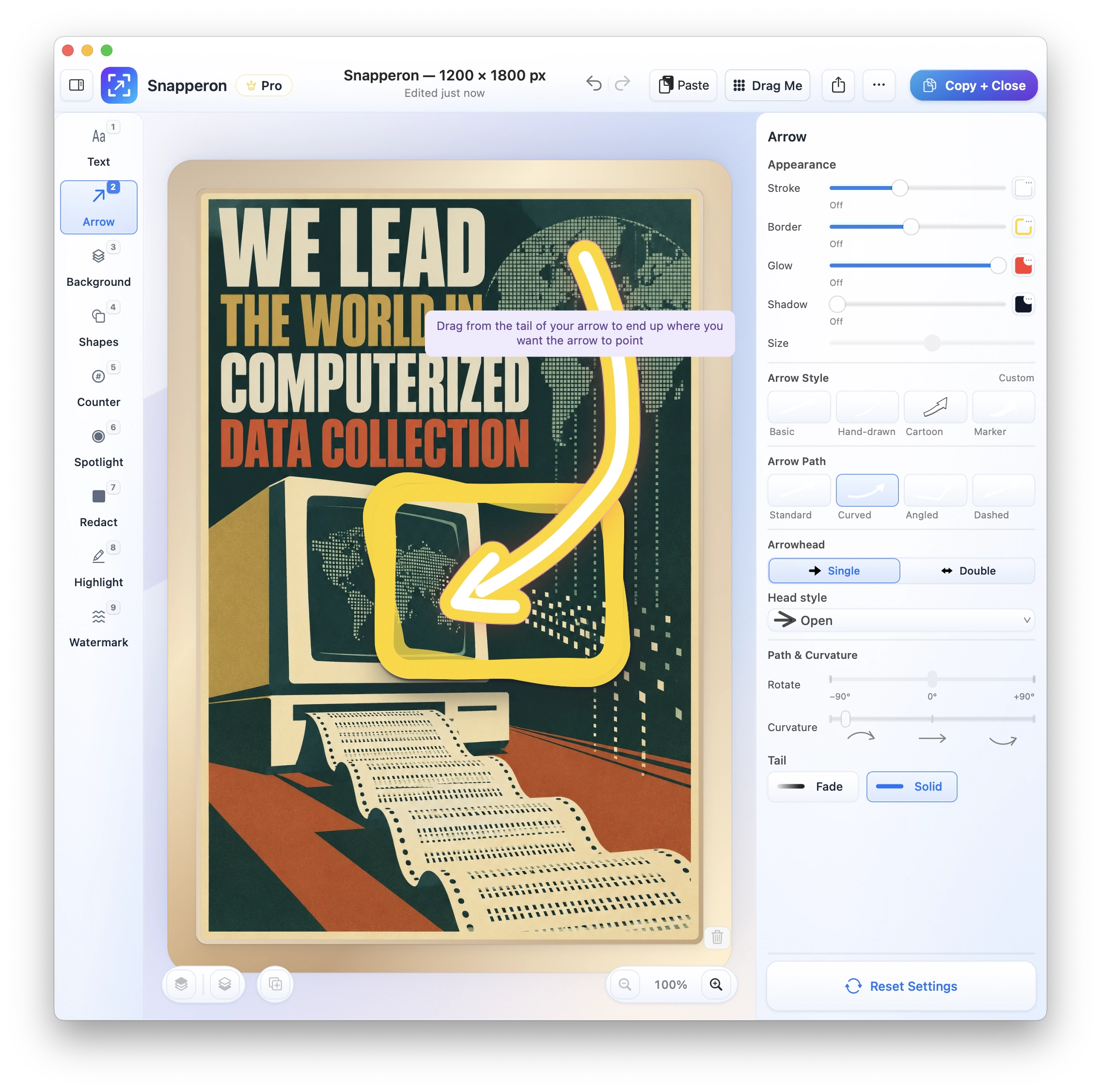
Snapperon is a Mac app for designer-quality annotations on still screenshots, for macOS 14 or later on Apple silicon. Capture or open an image, add your annotations, then use Copy + Close to put it on your clipboard and return to your work.
Is Snapperon a good macOS Markup alternative?
Choose Snapperon if you repeatedly prepare annotated screenshots, want designed presets and framing, or need local MCP preview-and-commit workflows.
Choose macOS Markup if you need a quick basic annotation, no extra installation, screen recording, signatures or a PDF deliverable.
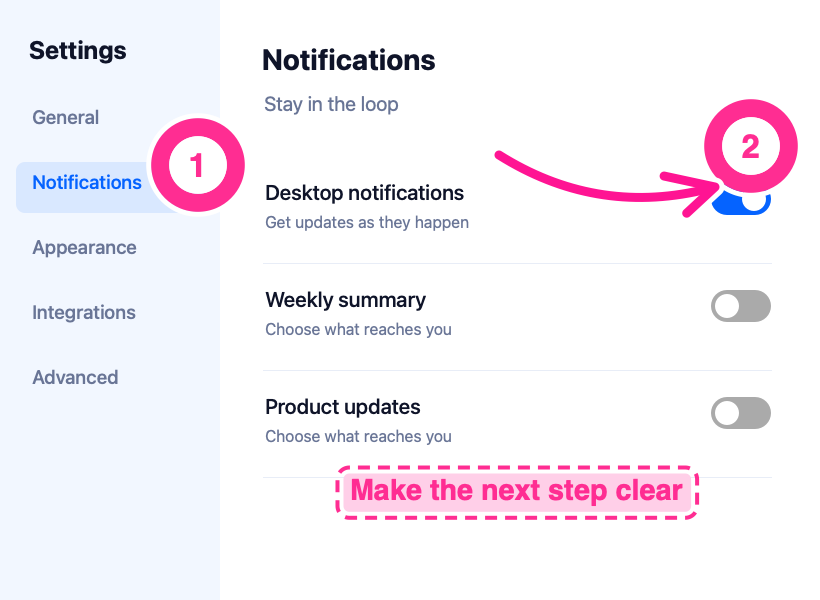
Make the next step clear
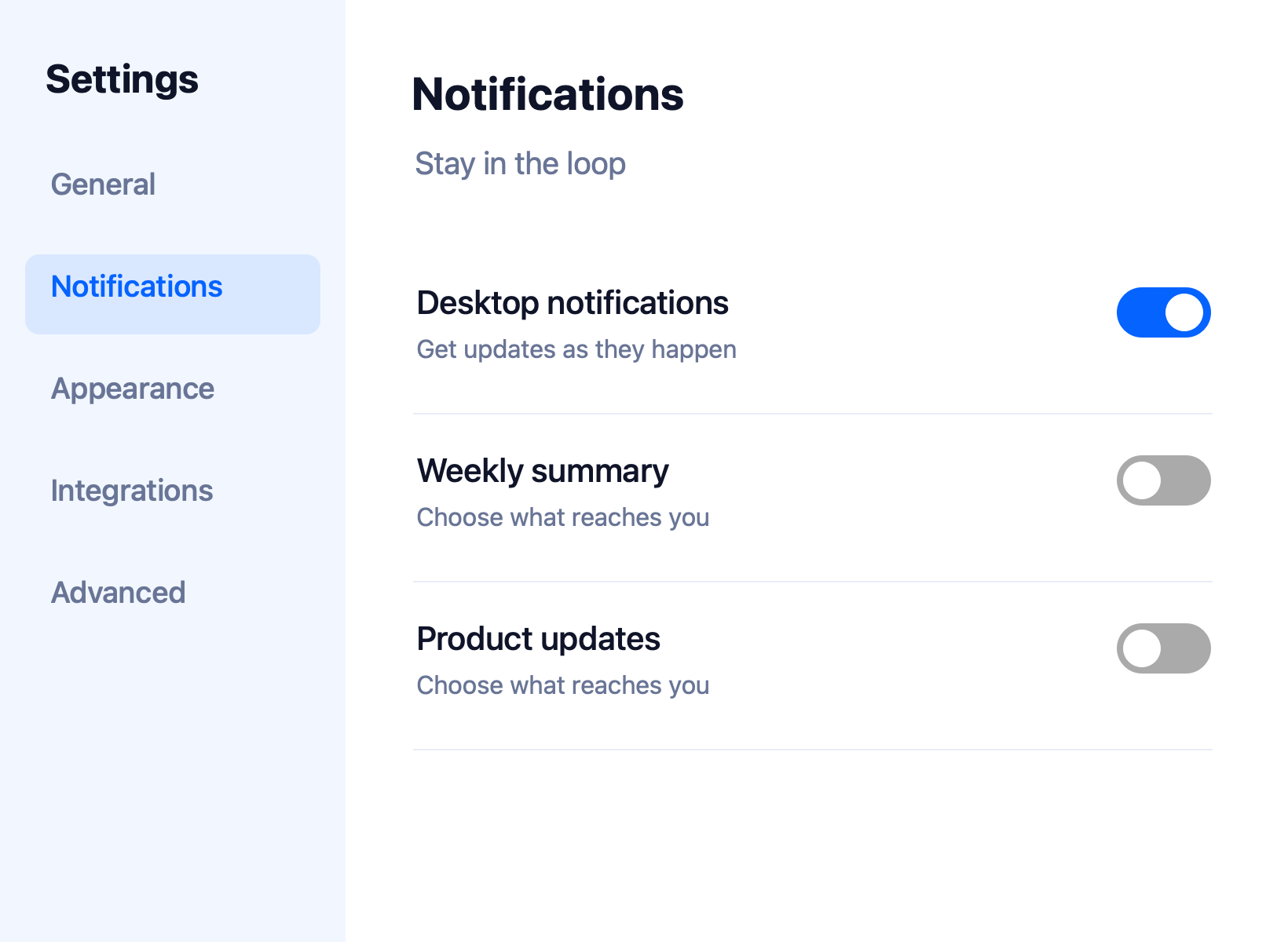
Here’s the same settings screen before and after annotation. The numbered steps, curved arrow and banner tell the reader where to look and what to do.
macOS Markup vs. Snapperon: features
| Your outcome | Snapperon | macOS Markup |
|---|---|---|
| Automate capture & markup locally with AI (MCP) | Included: 18 local MCP commands verified in Claude Desktop & Codex (all 9 tools, render preview, 1-step Undo) | No built-in MCP server documented |
| Start immediately | Download the native app; try its bundled demo | Included with macOS; no extra app install |
| Capture a region or window | Native screenshot capture | Shift-Command-4; Space selects a window |
| Capture a display | Native display capture | Shift-Command-3 or Screenshot controls |
| Record the screen | Not offered | Screenshot records screen video, with an optional microphone input |
| Annotate an image | Nine tools, native style presets and presentation framing | Markup toolbar with drawing, shapes and text |
| Redact a PDF | Annotate a rendered page; output PNG/JPEG | Preview includes a dedicated PDF redaction tool |
| Redact an image | Dedicated Solid redaction; Labeled/Pattern on Pro | Image Markup guide does not list a dedicated redaction tool; PDF redaction is separate |
| Keep a PDF deliverable | PDF re-export not offered | Preview supports saving PDFs and editable PDF annotations |
| Keep image annotations editable | Live layers stay in the Snapperon editor | Preview image annotations flatten when saved |
| Frame a screenshot | Backdrops, padding, borders, corners, shadows and watermarks | Basic image tools; choose for simpler edits |
| Control cost and compatibility | Free: 10 captures/day and watermark; Apple silicon macOS 14+ | Included with compatible macOS installations |
Send the download link to your Mac.
Free · No account needed · macOS 14+ · Apple Silicon
Why choose Snapperon for still screenshots?
Designer-quality annotations out of the box. Start with ready-made text-box templates, text effects and arrow effects. Add numbered steps or a spotlight, then adjust the style and color of each annotation. See the annotation styles
Copy + Close speed. Finish the image, choose Copy + Close, and paste it into your email, proposal or slide. That button copies the finished image and closes the editor. See how Snapperon works
Local AI control, editable by hand. Teams using Claude Desktop, Codex or local MCP workflows can automate approved screenshot capture, callouts and redaction. Preview the result, commit a batch as one Undo action and keep every layer editable. Free and Pro rules still apply. Explore local MCP
Gets out of the way. Snapperon opens the screenshot editor after capture and returns you to your work when you finish. It focuses on still images, with no recording tools, no account and no screenshot uploads.
Free macOS Markup alternative: start with Snapperon
Start Free. Pro Monthly is $2/month. Free includes up to 10 screenshots a day. Images you save or share carry a Snapperon watermark. Pro removes both limits and adds more styles.
Free is $0. Pro is $2/month, $19.99/year or $38.99 one-time. Installation starts a 3-day Pro trial with no account, no credit card and no automatic charge.
Built-in Screenshot and Preview add no separate app purchase. Snapperon Free and Pro are optional choices for a different annotation workflow.
Snapperon prices in USD. Official feature sources reviewed November 14, 2026. Taxes and regional pricing may vary. See Snapperon’s pricing and Apple screenshot shortcuts and Apple screen recording and Preview image annotation and Preview PDF annotation and redaction.
Send the download link to your Mac.
Free · No account needed · macOS 14+ · Apple Silicon
When macOS Markup is the better fit
- No extra installation. Use the built-in tools for a basic one-off screenshot or annotation.
- PDF documents. Use Preview when you need signatures, PDF editing tools or a PDF output file.
- Screen recording or Intel Macs. Use compatible built-in macOS tools for recording or hardware Snapperon does not support.
macOS Markup alternative: questions answered
Does macOS Markup or Snapperon support MCP for Claude Desktop and Codex?
Snapperon includes 18 local MCP commands tested in Claude Desktop and Codex Desktop. Assistants capture authorized windows, place native annotations, preview edits and export while preserving editable layers in the Mac app. macOS Markup does not document a built-in MCP server in the official sources linked here. Standard Free and Pro rules apply.
Can Preview redact PDFs permanently?
Yes. Preview has a dedicated PDF redaction tool. Apple notes that the redaction becomes permanent after the document is closed, with limitations such as related table-of-contents entries. A decorative shape over text is different from dedicated redaction.
Why install Snapperon if macOS already annotates screenshots?
Choose it for its native style presets, numbered counters, spotlights, presentation controls and Copy + Close workflow, or for Claude Desktop/Codex control through local MCP. Built-in Markup remains a useful choice for occasional simpler edits.
What happens to annotations after I save an image in Preview?
Apple says saved image annotations cannot then be edited, moved or deleted as individual annotations. Snapperon keeps native layers in its editor, while its exported PNG/JPEG files are also flattened. Neither flattened output format should be treated as an editable project file.
Does Snapperon replace screen recording or PDF export?
No. Snapperon focuses on still images and PDF-page annotation. Use Screenshot for recording and Preview or another PDF editor when you need to save a PDF rather than share a rendered page image.
MCP feature documentation checked November 14, 2026 against the official product sources linked above. Read Snapperon’s local MCP scope, client guidance and permissions.
Annotate it. Copy + Close. Get back to your work.
Try designer-quality annotations on your next screenshot.
“I create product launch visuals in minutes. They look like they were made in Figma.”
Send the download link to your Mac.
Free · No account needed · macOS 14+ · Apple Silicon
macOS Markup is a trademark of its respective owner. Snapperon isn’t affiliated with or endorsed by macOS Markup or its developer. Apple’s Screenshot and Preview documentation reviewed November 14, 2026. Tool availability varies by macOS version.